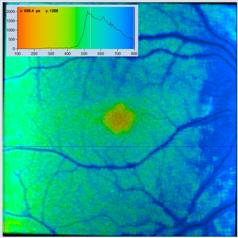
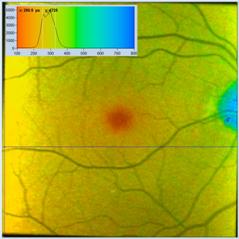
Wolfgang Becker, Axel Bergmann, Becker & Hickl GmbH
SPCImage NG is a new generation of bh's
TCSPC-FLIM data analysis software. It combines time-domain and frequency-domain
analysis, uses a maximum-likelihood algorithm to calculate the parameters of
the decay functions in the individual pixels, and accelerates the analysis procedure
by GPU processing. In addition to FLIM data, SPCImage NG processes single-curve
decay data, multi-wavelength data, excitation-multiplexed data, PLIM data,
mosaic FLIM data, and other multi-dimensional TCSPC data sets. SPCImage NG
provides decay models with one, two, or three exponential components,
incomplete-decay models, and a shifted-component model. A global analysis function
is available for analysing multi-exponential data with constant component
amplitudes. Another important feature is advanced IRF modelling, making it
unnecessary to record IRFs for the individual FLIM data sets. 1D and 2D
parameter histograms are available to display the distribution of the decay
parameters over the pixels of the image or over selectable ROIs. Image
segmentation can be performed via the phasor plot or the 2D parameter histograms.
Pixels with similar phasor or 2D parameter signature can be combined for
high-accuracy time-domain analysis, resulting in photon numbers known only from
cuvette-based lifetime experiments. A batch-processing function and a batch
export function are available for analysing a large number of FLIM data sets
automatically and to convert them into bmp or tif images.
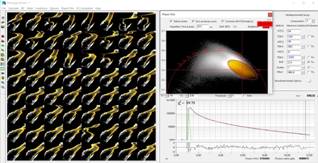
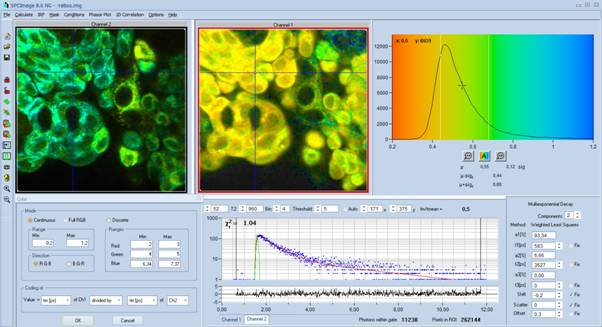
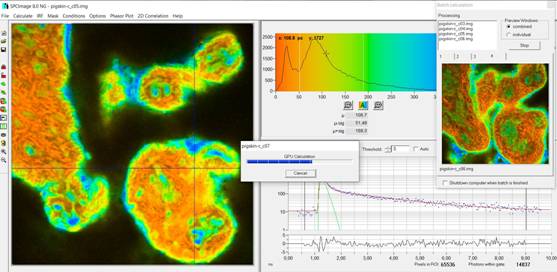
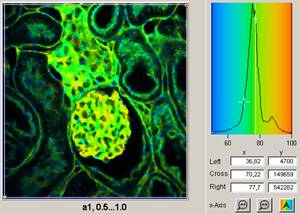
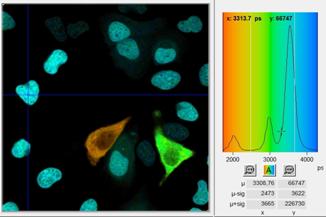
A typical main panel of SPCImage is shown
in Fig. 1. It shows a lifetime image on the left, a parameter histogram in the
upper right, and a fluorescence decay curve in the lower right.

Fig. 1: Main panel of SPCImage NG
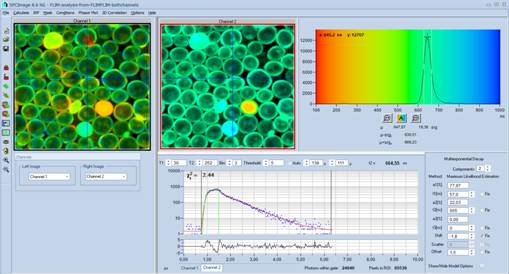
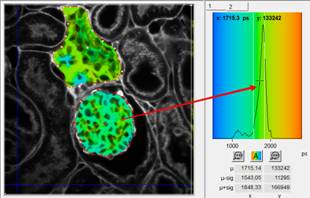
Since version 8.5 SPCImage NG is able to
display two lifetime images simultaneously. Typically, these are images of the
same sample in different wavelength intervals or for different excitation
wavelength. An example is shown in Fig. 2.

Fig. 2: SPCImage NG with two images in different wavelength intervals
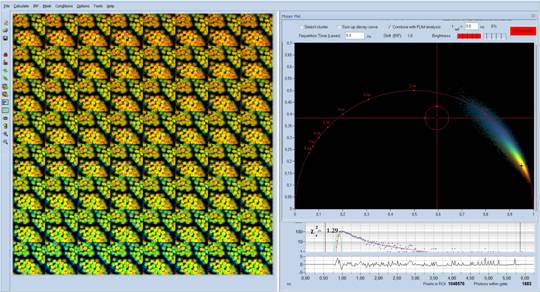
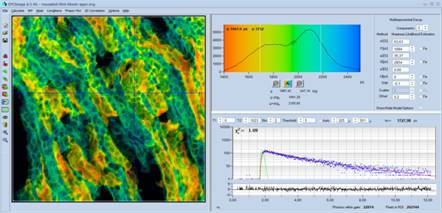
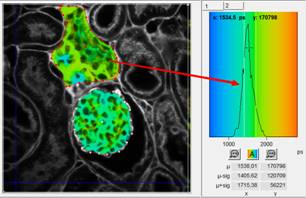
The upper right part of the SPCImage NG
panel can be replaced with a phasor plot. An examples is shown in Fig. 3.

Fig. 3: SPCImage NG main panel with phasor plot
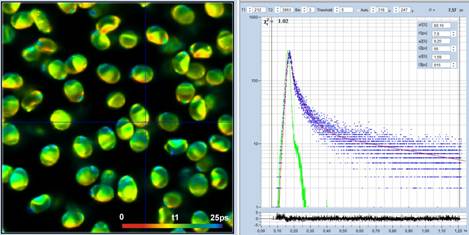
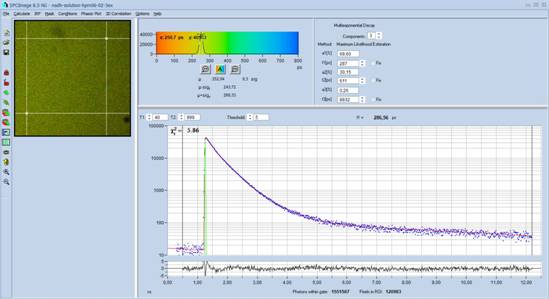
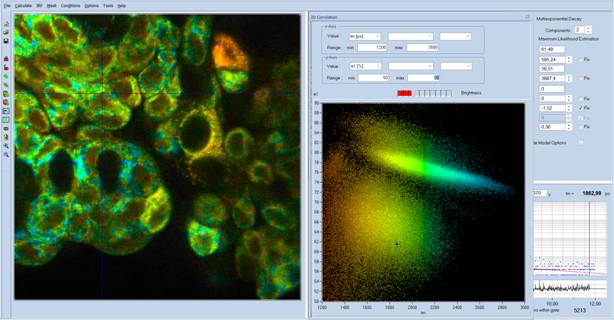
Other main panel configurations are
possible. These include combinations with grey-scale images, with 2-D parameter
histograms, and configurations for single-curve analysis. An example is shown
in Fig. 4.

Fig. 4: Main panel for single-curve analysis
In the simplest case, the result of FLIM
analysis is the 'lifetime' of the decay functions in the individual pixels. However,
in practice the decay functions are not single-exponential. Moreover, the
desired biological information often is in the composition of the decay
functions, not in the apparent lifetime. For complex decay functions SPCImage delivers
the lifetimes and amplitudes of the decay components. SPCImage then creates
colour-coded images of the amplitude- or intensity-weighted lifetimes in the
pixels, images of the lifetimes or amplitudes of the decay components, images
of lifetime or amplitude ratios, and images of other combinations of decay
parameters, such as FRET intensities, FRET distances, bound-unbound ratios, or
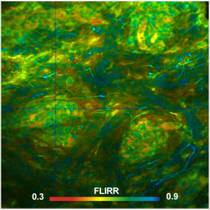
the fluorescence-lifetime redox ratio, FLIRR. Examples are shown in Fig. 5
through Fig. 8.

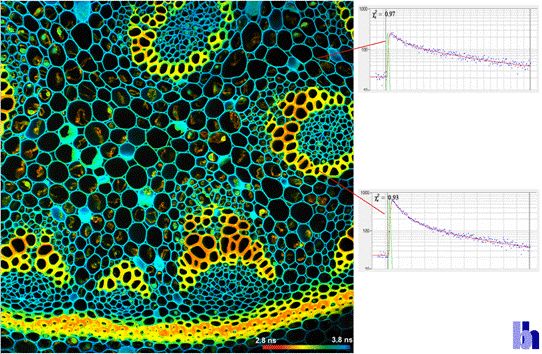
Fig. 5: Image of the amplitude-weighted lifetime, tm, of a
double-exponential decay. Right: Fluorescence decay curves in selected pixels.
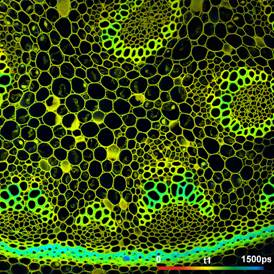

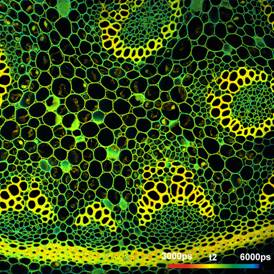
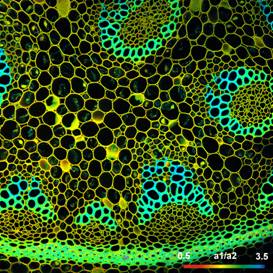
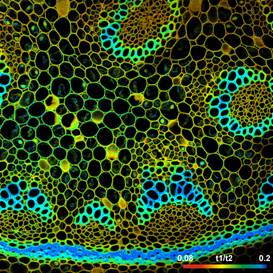
Fig. 6: Upper row: Images of the lifetimes of the fast component, t1,
and the slow component, t2, of a double-exponential decay. Lower
Row: Images of the amplitude ratio, a1/a2, and the
lifetime ratio, t1/t2, of the fast and the slow decay
component.
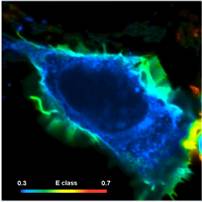
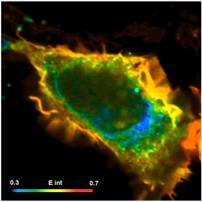
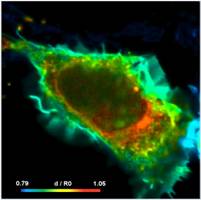
Fig. 7: Cell with interacting proteins,
labelled with a FRET donor and a FRET acceptor. Left to right: Classic FRET
efficiency, FRET efficiency of interacting donor fraction, FRET distance
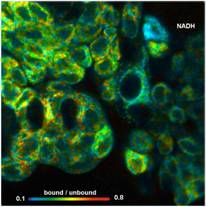
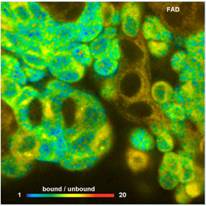
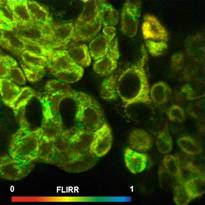
Fig. 8: Metabolic FLIM. Bound-unbound ratio of NADH, Bound/unbound ratio
of FAD, Fluorescence-Lifetime Redox Ratio, FLIRR.
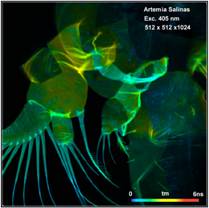
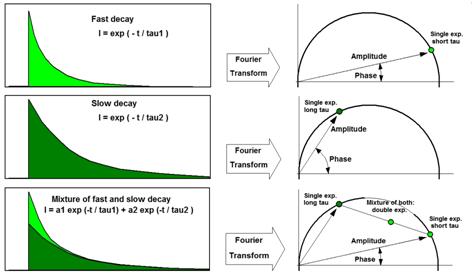
SPCImage FLIM analysis software combines
time-domain multi-exponential decay analysis with phasor analysis. Phasor
analysis expresses the decay data in the individual pixels as phase and
amplitude values in a polar diagram, the 'Phasor Plot', page 95. Pixels with
similar decay signature form distinct clusters in the phasor plot. Clusters of
interest can be selected and back-annotated in the lifetime image for further
processing or for combination of pixel data. An example is shown in Fig. 9.
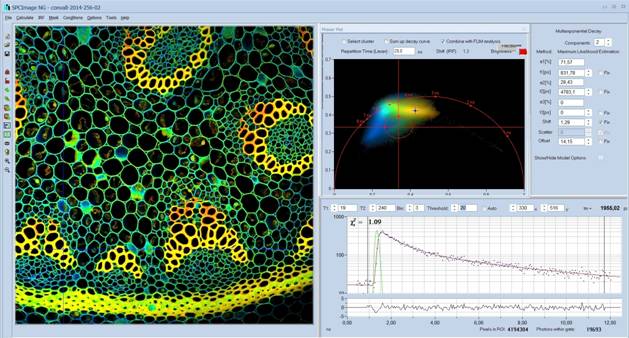
Fig. 9: Combination of time-domain analysis (left and lower right) and phasor
plot (upper right)
SPCImage NG runs an iterative fit and
de-convolution procedure on the decay data of the individual pixels of the FLIM
images. Since version 8.5 SPCImage NG uses a maximum-likelihood estimation
(MLE) process to determine the decay parameters in the pixels. In contrast to
the frequently-used weighted least-square (WLS) fit, MLE is based on
calculating the probability that the values of the model function correctly
represent the data points of the decay function. Compared to the least-square
method, the fit accuracy is significantly improved for multi-exponential decay
functions. Moreover, there is no bias toward shorter lifetime as it is unavoidable
for the least-square fit. Please see 'Fit Procedures', page 76.
Recording the
'Instrument Response Function' (IRF) is a permanent problem of time-resolved
fluorescence spectroscopy. Recording the IRF in a FLIM system is difficult, and
often impossible. As a result, there is rarely an IRF that was recorded in a
FLIM system and represents the temporal behaviour of the system correctly.
Therefore, SPCImage NG does away with IRF recording altogether. Instead, the
IRF is extracted from the FLIM data themselves. Earlier SPCImage versions had
an 'Auto IRF', which was derived from the rising edge of the fluorescence decay
function. The Auto IRF has been used successfully for more than 20 years. It
works well for decay functions which are not too far from a single-exponential
function but has deficiencies if very fast decay components are present. A new
approach introduced by SPCImage NG is the 'Synthetic IRF'. It is created by
modelling the IRF with a generic function. The exact parameters of this
function are determined by fitting it to the FLIM data together with the selected
decay model, see 'Model Functions', page 17. The results of this procedure are
so good that an accurate IRF is obtained even for decay functions containing
ultra-fast components, see Fig. 10.

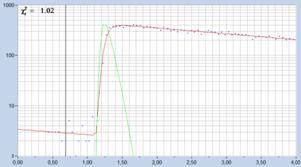
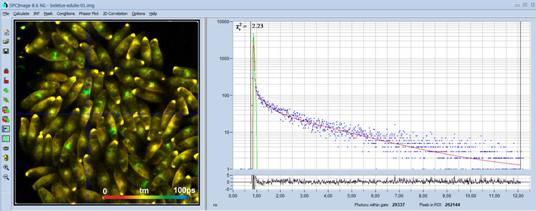
Fig. 10: Analysis with synthetic IRF. Left: Fluorescence excited by diode
laser. Right: Ti:Sa laser, sample with extremely fast decay component. Green
curve IRF, blue dots data points, red curve fit with triple-exponential decay
model.
SPCImage NG provides single-, double-, and
triple-exponential decay models. An Incomplete Decay option is available to
determine long fluorescence lifetimes within the short pulse period of the
Ti:Sa laser of a multiphoton system. SPCImage NG provides also a
'Shifted-Component' model. In this model, the decay components of a
multi-exponential model functions can be shifted in time by predefined values.
The model is used for ophthalmic FLIM, where different decay components come
from different depth within the eye. For details please see [1], chapter ???.
Data recorded with bh FLIM systems can
contain an enormous number of pixels and time channels. Images with
1024 x 1024 or even 2048 x 2048 pixels are not uncommon, and
time-channel numbers of 1024 are routinely used in combination with fast HPM
detectors [19]. Processing such amounts of data by the CPU of even a fast
computer would take tens of minutes, and a fit with global parameters would by
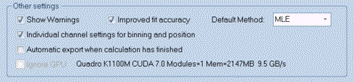
entirely out of reach. SPCImage NG therefore runs the data analysis on a GPU
(Graphics Processor Unit). The image data are transferred into the GPU, which
then runs the de-convolution and fit procedure for a large number of pixels in
parallel. With the GPU, data processing times are thus massively reduced. The
image shown in Fig. 11 was calculated on an NVIDIA GPU within five seconds.

Fig. 11: A lifetime image with 1024 x 1024 pixels and 1024 time channel per
pixel. The image was calculated on an NVIDIA GPU in 5 seconds.
SPCImage has histogram functions for the
decay parameters. The histogram shows how often pixels of a given parameter
value occur in the lifetime image. The histogram refers either to a selected region of interest or, if
no ROI was defined, to the entire lifetime image. Together with the various
options to select decay parameters and combinations of decay parameters a wide
variety parameter histograms can be obtained. Two examples are shown in Fig. 12.

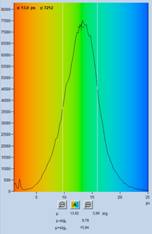
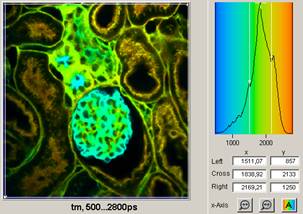
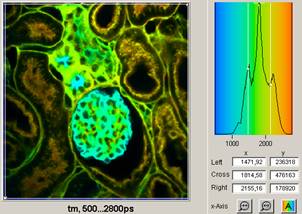
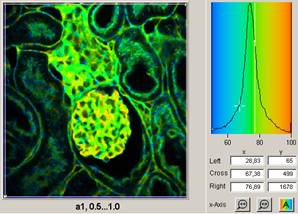
Fig. 12: Histograms of the mean (amplitude weighted) lifetime of
double-exponential fit (left) and of the amplitude of the fast decay component,
a1 (right)
2D histograms present density plots of the
pixels over two selectable decay parameters. The decay parameters can be
lifetimes, t1, t2, t3, or amplitudes, a1,
a2, a3, of decay components, amplitude or
intensity-weighted lifetimes, tm or ti, or arithmetic
conjunctions of these parameters. An example is shown in Fig. 13. A histogram
of the amplitude, a1, of the fast decay component versus the
amplitude-weighted lifetime, tm, has been created. Cursors in the
histogram are available to select special parameter combinations and
back-annotate the corresponding pixels in the lifetime image.

Fig. 13: 2-D histogram showing density plot of pixels over
amplitude-weighted lifetime, tm, and amplitude of fast component, a1.
SPCImage NG allows the user to define ROIs
in the images. Both rectangular and polygonal ROIs can be defined. Parameter
histograms are displayed for the selected ROI, see Fig. 14.

Fig. 14: ROI Definition. Left: Rectangular ROI. Right: Polygonal ROI
Several polygonal ROIs can be defined, and
the corresponding parameter histograms be selected via the buttons on top of
the histogram window. Please see Fig. 15.
Fig. 15: Multiple ROIs, with selection of parameter histogram.
Images taken at high pixel numbers and
Mosaic FLIM images can contain a large number of cells. In these cases, it is
time-consuming, if not impossible, to manually select regions of interest for
each of the cells in the image. SPCImage NG therefore provides automatic image
segmentation functions via the phasor plot and the 2D histograms. Areas with
different decay signature form separate clusters in these presentations.
Interesting clusters can be selected and back-annotated in the images. An
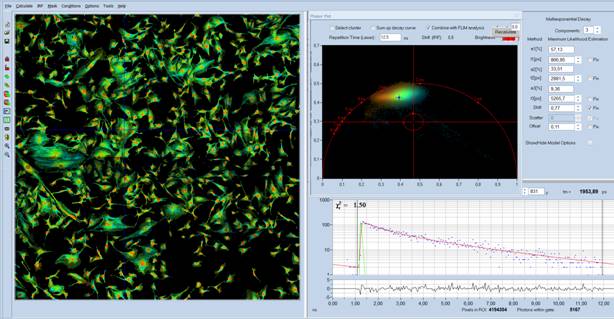
example is shown in Fig. 16. The image area contains a large number of cells. A
phasor plot of the image was calculated, the phasor range of the cell nuclei
selected, and the corresponding pixels back-annotated in the lifetime image.
The decay data of these pixels were combined. The result is single decay curve,
containing an enormous number of photons. This curve can be analysed at high
precision with double- and triple-exponential decay models, see Fig. 16, bottom
right. For details please see 'Phasor Plot', page 46.
Fig. 16: The phasor range of the nuclei of the cells has been selected by
the 'Select Cluster' Function. The decay-parameter histogram (shown right)
refers to the selected pixels. A combined decay curve for the selected pixels
is displayed by the 'Sum up decay curves' function.
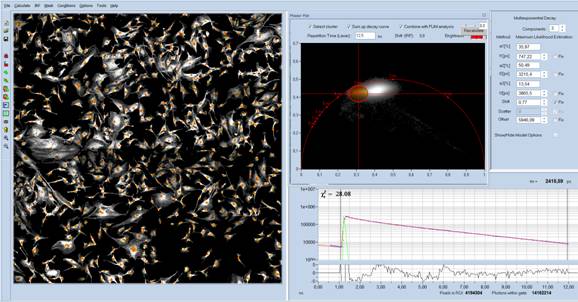
Fig. 17: Detail from Fig. 16. The nuclei
have been selected by phasor-segmentation.
There are several ways to load FLIM data
into SPCImage. You can use the Send Data to SPCImage function of the SPCM
software, import a .sdt TCSPC data file, or load .img data previously analysed
by SPCImage.
Loading of SPCImage Files
Data previously analysed and saved by
SPCImage data analysis (.img files) are loaded via the Open function. Click
into Main, Open as shown in Fig. 18.

Fig. 18: Opening .img files generated by SPCImage
After loading the data SPCImage will come
up in a configuration as shown in Fig. 19.

Fig. 19: SPCIMage NG main panel after loading .img data
Importing Data From SPCM by Send Data Function
Raw data can be send directly from SPCM to
SPCImage. The Send Data to SPCImage function of the SPCM software is
illustrated in Fig. 20. The function automatically opens SPCImage and transfers
the data. In the application options of the SPCM
software you can select whether you want to transfer the data of all active
display windows or only the data of the selected one. To select a display
window, first click into the image that you want to analyse, see Fig. 20, left.
Then transfer the data by clicking into Main, Send data to SPCImage, see Fig.
20, right.

Fig. 20: Sending data from SPCImage into SPCImage. Left: Selection of the
data to be analysed. Right: Sending the selected part of the data to SPCImage
Import of .sdt Files
Files from SPCM (.sdt format) are loaded
via the 'Import' function. A click into Main, Import, (Fig. 21, left) opens
a file selection panel (Fig. 21, right). Select the desired file from this
panel and click on 'Open'. SPCImage then examines the selected file and opens
the Import Options panel for the type of data found in the file.
The 'Import Options' panel for FLIM images
is shown in Fig. 22, left. Top left, it shows the general structure of the
data. In the example shown the file contains two FLIM images from different
TCSPC / FLIM modules. Upper right, the import panel shows information
on the images, such as pixel number and number of time channels. At the bottom
of the panel, you can specify subsets of the data for import. For standard
applications we recommend to select 'All', and then click on 'OK'. When the
import is completed the image and a decay function will show up in the SPCImage
main panel. It can happen, however, that the .sdt data contain combinations of
modules, routing channels and page numbers which you do not want to import. In
that case, you can disable or enable modules, and select ranges of routing
channels which you want to import. There is also an option to combine the data
of all modules and channels, or to add or subtract data from the data already
loaded. These options should be handled with care. They require that all data
are recorded with the same time scale, time-channel number, IRF position and
IRF shape.
The Import Options for files that contain
decay curves are shown in Fig. 21, right. The file structure window (upper
left) indicates that the file contains single decay curves in different
'Traces' of SPCM. The Measurement Info window upper right shows basic
information about the data, such as number of time channels and time range.
'Import as' allows you to import the data as normal decay curves or to import a
single curve as an Instrument Response Function (IRF). At the bottom of the import
panel you can select which curves you want to be import. If in doubt, just
select 'All' and proceed by clicking 'OK.
Fig. 21: Import of FLIM data. Left: Select Import function in 'File' menu.
Right: Select the file to be imported.

Fig. 22: Import Options panel for image files (left) and single-curve files
(right)
SPCM Panel after Import of Data
After importing .sdt data into SPCImage the
main panel comes up as shown in Fig. 23 or Fig. 24. Fig. 23 shows the main
panel when image data were imported. An intensity image is shown left, a decay
curve at the cursor position bottom right. The image shows only a grey-scale
image because these have not been calculated yet. A decay-parameter histogram
is shown upper right. It is empty because no decay analysis has been performed
yet. In the upper right, the decay model can be specified. After loading new
data the model function is single exponential (Components=1), which is the default.

Fig. 23: SPCImage main panel after
importing image sdt data
When single-curve data were imported the
main panel comes up as shown in Fig. 24. The decay-curve window shows a decay
curve, the decay parameters are shown upper right. The decay model is
single-exponential. If several decay curves were imported these are accessible
through the tabs below the decay-curve window. The image window (top left) and
the histogram window (top middle) remain empty because the imported file did
not contain suitable data for these windows.

Fig. 24: SPCImage main panel after importing single-curve sdt data
Initial Check of Decay Data
After importing or loading data you should
give the decay data a brief check for integrity. The decay curve should be
correctly placed in the decay window (the observation-time interval), as shown
in Fig. 23 and Fig. 24. The rising edge must be in the decay window, and there
should be a few (5 to 10%) of the time channels left of the rising edge. Some
unfavourable situations are shown in Fig. 25 and Fig. 26. These situations are
not necessarily fatal but suggest corrections in the measurement procedure, the
measurement setup or the measurement parameters.
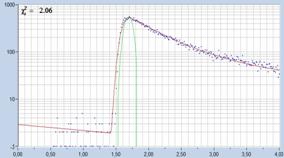
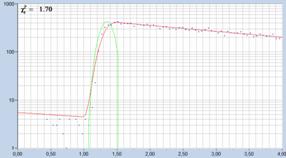
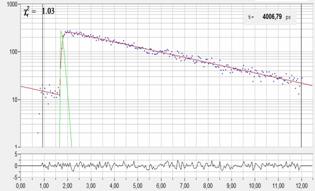
In Fig. 25, left, the decay curve does not
contain enough photons. The signal-to-noise ratio of lifetimes obtained from
such data is low, and usually not sufficient for the intended application.
Increase binning, or record new data with more photons. The decay curve shown
in the Fig. 25, middle, contains large background. SPCImage will extract
correct decay parameters from such data, but the signal-to-noise ratio will be
sub-optimal [5]. Therefore, find and remove the source of the background. The
curve shown in Fig. 25, right, is not placed well in the observation-time
interval. Also here, data analysis will deliver correct data, but with a signal-to-noise
ratio below the theoretical limit [5]. Therefore the curve should be shifted in
the correct position by changing the TCSPC parameters or the SYNC delay. Please
see [1], chapter 'System
Optimisation'.
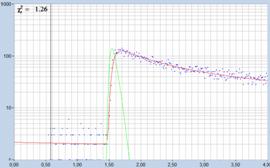
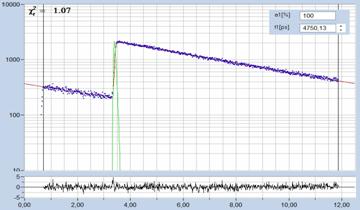
The situations shown in Fig. 26 are more
serious or even fatal. In Fig. 26, left, the decay curve is clipped at the left
end, and the rising edge is not in the observation time interval. SPCImage may
deliver a reasonable single-exponential lifetime in this case, but
multi-exponential decay parameters derived from such data will be entirely
wrong. There is no way around taking another measurement with corrected TCSPC
system parameters. In Fig. 26, right, the decay curve does not contain any
reasonable decay data at all. The source of the problem is usually that wrong
filters had been used, and the FLIM system is detecting scattered laser light.

Fig. 25: Situations where correction is indicated. Left: Not enough
photons. Middle: High background. Right: Decay curve shifted in observation-time
interval.

Fig. 26: Situations which are fatal to FLIM analysis. Left: Decay data
clipped at left and, rise of fluorescence not recorded. Right: The recorded
signal is scattered laser light.
Starting the Calculation
In principle, you can start a lifetime
analysis immediately from the state shown in Fig. 23. (There is even an option
to do this automatically, see Preferences, page 52.) To start the analysis,
click into Calculate, Decay Matrix, 'Selected channel' or, if you have
loaded data with several channels 'all channels'. This starts the fit process.
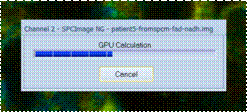
A progress bar shows the advance of the calculation as the procedure runs
through the pixels. If there is a GPU in the computer the calculation will
complete within a few seconds, if there is no GPU it can take several minutes.
What you get is a colour-coded lifetime image calculated with default parameters
of SPCImage. The decay model will be single-exponential, the IRF will be
'Auto', and the lifetime and intensity ranges will be set automatically.

Fig. 27: Starting the fit procedure for
all pixels of the image
Single-Exponential Analysis
The number of decay components used in the
analysis is defined in the upper right of the SPCImage panel. FLIM analysis
with a single-exponential model (or with default parameters) is shown in Fig. 28.
Number of 'Components' is 1. The procedure delivers a single lifetime, t1.
This lifetime is used for colour-coding the image. The lifetimes in the pixels
will be correct and reasonably accurate. However, the fluorescence decay in
biological objects is rarely single-exponential. Normally there are several
decay components in each pixel, either from different fluorophores, or from one
fluorophore in different molecular environment. Often the information is in the
composition of the decay rather than in an average ('apparent') lifetime.
Single-exponential analysis is therefore unlikely to deliver the maximum of information
you can obtain from your raw data.

Fig. 28: SPCImage panel after calculating the lifetime image with the
default settings
Multi-Exponential Analysis
Multi-exponential decay analysis is shown
in Fig. 29. In the upper right, analysis with three exponential components has
been selected. For every pixel, the analysis procedure delivers three lifetimes,
t1, t2, t3, and three amplitudes, a1,
a2, a3, for the three decay components. The display
routine of SPCImage can display each of these parameters, ratios of the parameters,
and intensity- or amplitude-weighted averages of the component lifetimes. The
default is the amplitude-weighted mean lifetime, tm. The display
routine has functions to further refine the images, for example by manually
adjusting the colour scale and the intensity scale, or by creating time-gated
images. Please see page 'Display of Colour-Coded Images'.
Also the model function can be further
refined, such as by the 'Incomplete Decay' or the 'Shifted Component' option.
It is also possible to fix one or two of the decay components to values which
are a priori known. For details please see 'Model Functions', page 17 and 'Model
Parameters', page 49.

Fig. 29: Triple-exponential decay analysis. Model selection and decay
parameters at cursor position shown in the upper right. Analysis with three
exponential components has been selected, the amplitude-weighted lifetime, tm,
is shown.
Parameter Histogram
A histogram of the selected decay parameter
over the pixels of the image is shown above the decay-curve window. It shows
how frequently a given value of the parameter occurs in the image. The
parameter is the same that was selected for colour-coding the image. It can be
the amplitude-weighted lifetime (as in Fig. 29), the intensity-weighted
lifetime, a component lifetime, a component amplitude, or a ratio of two of
these parameters. The parameter histogram can be displayed for selected regions
of interest, please see 'Decay-Parameter Histograms in ROIs', page 42. The
parameter histogram has two cursors, which interact with the display function
(see 'Interaction with the Colour Parameters', page 36). In combination with
the
,
,
and
buttons a desired
parameter range can be selected, and the colour scale adjusted accordingly.
Please see 'Parameter Histogram', page 36.
Basic Decay Models
The fluorescence decay function obtained
from a homogeneous population of molecules in the same environment is a single
exponential. Decay functions of mixtures of different molecules or of molecules
in inhomogeneous environment are sums of exponential functions of different
decay time. The basic model functions used in SPCImage are therefore sums of exponential
terms:
Single-exponential model: 
Double-exponential model: 
Triple-exponential model: 
The models are characterised by the
lifetimes of the exponential components, t, and the amplitudes of
the exponential components, a. In principle, models with any number of
exponential components could be defined. However, higher-order models become so
similar in curve shape that the amplitudes and lifetimes cannot be obtained at
any reasonable certainty. Therefore, SPCImage NG FLIM analysis does not provide
model functions with more than three components.
Single, double, and triple-exponential
models are selected via the decay-parameter panel on the right of the
decay-curve window, see Fig. 30.

Fig. 30: Selection of basic single, double, and triple exponential models

Fig. 31: Left to right: Fit with Single-, double-, and triple-exponential
models. The blue dots are the data in the time channels, the red curve is the
model function. The decay parameters are shown upper right.
A shift parameter can be included in the
fit procedure. It shifts the IRF in a temporal position that yields the best
fit of the decay functions. However, a floating shift decreases the lifetime
accuracy and increases the calculation time. We recommend to determine the
'Shift' parameter before starting the analysis and then fix it, or let the
analysis procedure fix it automatically when it starts the calculation. Please
see Model Parameters, Fig. 88.
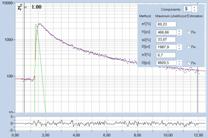
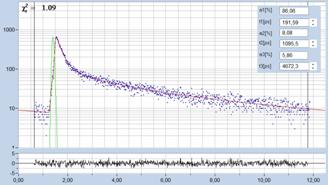
Typical examples of fits with different
models are shown in Fig. 32. The single exponential model (left) does not fit
the data. This can be seen from the differences of the model function and the
data and from the systematic variation in the residuals. The double-exponential
model (middle) fits well, the triple-exponential reveals a weak third component
of long lifetime. However, the residuals (the curve below the decay function
see 'Fit Quality Indicators', page 27) do not improve substantially for the
triple-exponential model. The decay parameters derived by the
triple-exponential fit may therefore not exactly represent the real composition
of the decay curve.

Fig. 32: Fit of decay data with a single, double, and triple-exponential
model.
The basic decay models can be combined with
model options provided by the 'Model' parameters, see page 49. The 'Incomplete
Multiexponentials' option is used to account for residual fluorescence from
previous laser pulses. The corresponding section of the Model Parameters is
shown in Fig. 33. The incomplete decay model needs the period of the excitation
pulses, which must be specified in the upper right.

Fig. 33: Incomplete-decay option in the model parameters.
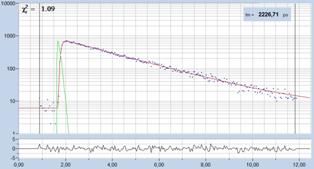
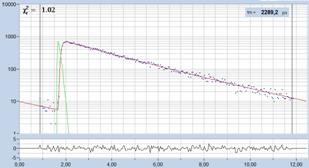
Fig. 34 gives a comparison of the ordinary
multi-exponential model (left) and the incomplete-decay model (right). The
ordinary model interprets the intensity left of the rising edge of the decay
curve as offset, the incomplete-decay model fits it correctly with fluorescence
from the previous pulses.

Fig. 34: Fit of the fluorescence decay of a Calcium sensor, lifetime
2.29 ns, excitation with Ti:Sa laser at 80 MHz. Left: ordinary
double-exponential model. Right: Incomplete decay model.
The result is a different lifetime, tm.
The difference is not large as long as the lifetime is short compared to the
laser pulse period. The difference can, however, be substantial if the decay
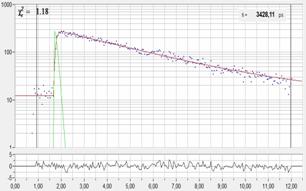
time is longer. Fig. 35 shows an example for a 5.95-ns decay measured with the
12.5 ns repetition time of a Ti:Sa laser. A fit with the conventional
model is shown left. The fit delivers a lifetime of 4.05 ns. The large
residuals indicate that the model is not able to fit the data correctly. The
fit with the incomplete-decay model is shown on the right. The model delivers a
perfect fit, and a lifetime of 5.95 ns. The example shows that the use of
the incomplete-decay option is mandatory for lifetimes larger than 25% of the
laser repetition time.

Fig. 35: A 5.95-ns decay recorded in a two-photon microscope. Laser
repetition rate 80 MHz. Left: Fit with conventional model. It does not fit
the data correctly. Right: Fit with incomplete-decay model. The
incomplete-decay model not only fits the data perfectly but also delivers the
correct decay time.
Shifted-Component Model
In clinical FLIM it happens that one or
several decay components are shifted in time. A typical example is ophthalmic
FLIM (FLIO) where fluorescence from the lens of the eye interferes with
fluorescence of the fundus. The lens fluorescence appears about 150 ps
before the fundus fluorescence. The shifted-component model takes this shift
into account [1, 3].
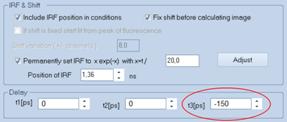
A demonstration is given in Fig. 36 and Fig.
37. A FLIO decay curve together with the model definition is shown in Fig. 36.
A triple-exponential model is used; the lens component is modelled by the third
decay component and shifted 150 ps towards earlier times. As a result, the
model fits the lens component correctly, including the kink in the rising edge
caused by the early arrival of the lens fluorescence.

Fig. 36: Decay curve from FLIO data. Fit with shifted-component model,
third decay component shifted by 150 ps to earlier time.
FLIO lifetime images obtained by the
ordinary multi-exponential model and by the shifted-component model are
compared in Fig. 37. For the ordinary model, the lens fluorescence causes a
substantial shift of the mean lifetime, tm, to longer values. The
shifted-component model is able to deliver an image which contains only the
fundus fluorescence, modelled by the components t1 and t2.
The corresponding image of the lifetime tm12 is shown in Fig. 37,
right. It shows the correct lifetime of the fundus of the eye [1, 3]. Please
see [1], chapter Ophthalmic FLIM (FLIO).
Fig. 37: Comparison of FLIO analysis with the ordinary 3-component model
(left) and with the shifted-component model (right). Due to the contribution of
the lens fluorescence, the ordinary image is biased towards long lifetime. The
delayed-component model delivers an image that does not contain the lens
fluorescence, showing the correct lifetime of the fundus of the eye.
Analysis with fixed or global parameters
The lifetimes of the individual decay
components can be fixed to known values or defined as 'Global'. The 'Global'
option fits the decay data under the assumption that the component lifetimes
are unknown, but otherwise the same in all pixels of the image [4]. Analysis
with fixed or global component lifetimes can increase the statistical accuracy
of the fit results considerably. It requires, however, that the lifetimes are
accurately known or constant over the entire image. For details, please see 'Global
Analysis', page 58 The definition of the parameter status is shown in Fig. 38.

Fig. 38: Definition of lifetime components as 'Fixed' (left) and 'Global'
(right)
The fluorescence waveform the FLIM system
records is the convolution of the true fluorescence decay profile with the
instrument response function, or IRF. The IRF is the function the FLIM system
would record when it detected the laser pulse directly. Decay parameters are
derived from the recorded waveforms by convoluting a model function with the
IRF, and fitting the result to the data, see 'The Convolution Integral', page 72.
Thus, at least an approximate IRF is needed to derive fluorescence decay
parameters from the detected fluorescence waveforms. It is often believed that
the IRF has to be measured before data can be analysed. However, in a FLIM
system this can be difficult or even impossible. SPCImage therefore offers
several options to generate an IRF from the FLIM data themselves.
Selection of IRF Type
The different IRF types are defined by
clicking into 'IRF' in the top bar, and selecting the desired option, see Fig. 39.
The effect of the different options is shown in Fig. 40.

Fig. 39: Options to generate the IRF

Fig. 40: Effect of the IRF options. Upper row, left to right: Auto IRF, IRF
from Clipboard, IRF copied from recorded data. Lower row left: Rectangular IRF,
Right: IRF of type irf(t) = t/t0 e-t/t0.
'Auto' calculates an IRF from the rising
edge of the decay data. The calculation is performed on data from an area
around the brightest spot in the image. When 'Auto' has been set the IRF calculation
is done automatically after loading data.
'Paste from clipboard' recalls an IRF which
has been copied by 'Copy to Clipboard' before.
'Copy from decay data' uses decay data from
a selected spot in an image as an IRF. The selected spot can either be a spot
in the current image where the decay function is dominated by SHG, or an image
that contains only SHG or fast scattering data. The IRF is generated from the
data inside the decay cursor interval. Data points outside this interval are
set to zero. To transfer the data into a different measurement data set, use
'Copy to clipboard' and, after loading the measurement data file, 'Paste from
clipboard'. You can save the IRF by 'Save IRF' in the model parameter panel.
'Set to rectangle' sets a rectangular IRF.
Width and location are determined by the cursors in the decay window. The
function is often used for PLIM, where the IRF is close to a rectangle.
'Set to x exp (-x)' sets an IRF
to a function of the type irf(t) = t/t0 e-t/t0. The width
and the location are selected by the cursors in the decay window, see Fig. 40,
right. You can declare this IRF a permanent one in the 'Model' parameters, and
further refine it by an automatic optimisation procedure, see page 82.
Modelling of the Synthetic IRF
Defining a synthetic IRF only by the
cursors of the decay window is not quantitative, and leaves room for subjective
judgement. SPCImage NG therefore has a function to model the synthetic IRF by
fitting it to the recorded decay data. The procedure is described in detail in
section 'Instrument Response Function' page 82. Briefly, the width parameter, t0,
of the generic IRF function, irf(t) = t/t0 e-t/t0 is
optimised until the best fit of the convolution integral of the IRF with the
selected model to the recorded fluorescence data is obtained. The adjust procedure
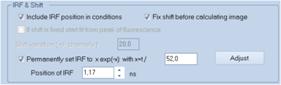
for the width parameters is accessed under 'Model', section
'IRF & Shift'. A click on the upper 'Adjust' button, Fig. 41,
left, starts the procedure.

Fig. 41: IRF Adjust for width (left) and position of IRF (right)
The result of the operation is an IRF with
a correct shape, but not necessarily in the correct temporal position. To get
the IRF in the correct position, click on the Adjust button for 'Position of
IRF', see Fig. 41, right. The effect of the two adjust operations is
demonstrated in Fig. 42.
Both adjust operations should be performed
with a reasonably selected decay model. The reason is obvious: If the model is
not able to fit the decay data correctly the IRF adjust procedure compensates
for the deficiencies of the model with a change in the IRF. The result may be a
reasonably good fit of the decay data but with wrong decay parameters.

Fig. 42: Left to right: IRF (green curve) before adjust, after width
adjust, and after position adjust.
Permanent IRF
A synthetic IRF, once created, can (and
should) be declared 'permanent', see Fig. 43. The IRF parameters are then taken
over in the default parameters of SPCImage, and can be used for other data
recorded with the same FLIM system.

Fig. 43: Declaring a synthetic IRF 'Permanent'
Saving and Loading IRFs
A synthetic IRF can be saved for future use
in a file, and loaded from this file when needed. The function is initiated via
the 'Save IRF' and 'Load IRF' buttons (see Fig. 43). This opens a file
selection panel in which the name of a new IRF can be defined or from which an
existing IRF can be selected. Please see Fig. 44.

Fig. 44: File selection panel for saving (left) and loading IRFs (right)
SPCImage NG has three different fit
algorithms. 'Weighted Least Squares' (WLS) is the conventional algorithm, based
on a minimisation of the sum of the squared differences between the data points
and the points of the model function. 'Weighted' means that the differences are
weighted with the reciprocal photon number, 1/(n+1). WLS works well for high
photon numbers but has deficiencies when the photon number is low.
'Moment' (MOM) is a calculation based on
the first moment of the decay curve. MOM is a simple calculation, not a fit
algorithm. It is fast and delivers the maximum possible lifetime accuracy.
However, it delivers only a single-exponential approximation of the lifetime,
and the lifetimes become systematically biased when the tail of the decay
function is not entirely in the observation time interval or the data contain
background counts [5].
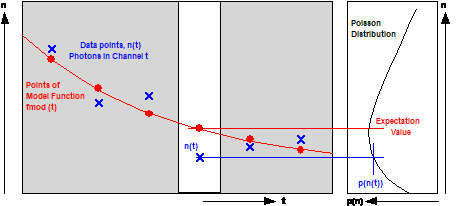
'Maximum-Likelihood Estimation' (MLE) is
based on calculating the probability that the values of the model function
correctly represent the data points of the decay function. Compared to the
least-square method, the fit accuracy is improved especially for low photon
numbers, and there is no bias toward shorter lifetime as it is unavoidable for
the WLS fit. MLE uses GPU processing, which makes the calculation by a factor
of 10 to 100 faster than by WLS. For a detailed description of the algorithms
please see 'Fit Procedures', page 76 in section 'Supporting Information'.
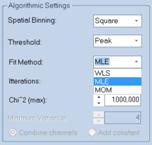
The algorithm is selected in 'Algorithmic
Setting', in the 'Model' parameters, see Fig. 45, The default algorithm is MLE.

Fig. 45: Selection of the fit algorithm in the Model Parameters
Fit Interval
The fit of the decay data is performed in
the interval between the cursors in the decay window. Normally, the fit should
be performed over the entire interval where the decay function has valid data,
i.e. the cursors should be placed on the first and the last data point, see Fig.
46, left. After importing data SPCImage runs a check on the data and suggests
reasonable cursor positions.

Fig. 46: Effect of cursors in the decay window. Left: Fit within entire
range of valid temporal data. Right: Fit of late part of decay data only. The
fast decay component is not correctly reproduced.
The fit can be restricted to a part of the
data if necessary, as shown in Fig. 46, right. However, this should be done as
an emergency solution only, e.g. if the decay data contain artefacts. In fact,
restricting the fit to the later part of the fluorescence is common practice to
solve the problem of a wrong IRF. A wrong IRF leads to large residuals in the
rising edge of the decay curve. It is therefore sometimes attempted to exclude
this part from the fit. However, excluding the first part of the curve does not
make the result any better. On the contrary, the analysis routine is likely to
miss fast decay components which may be contained in the data. An example is
shown in see Fig. 46, right. The fit perfectly reproduces the later part of the
decay curve but entirely misses the fast decay component. Another problem of
the 'Tail Fit' is that the 'Shift' parameter cannot be reliably determined. The
reason is that the shape of later part of the curve is virtually independent of
the temporal location of the IRF. Therefore, a tail fit, if ever necessary,
must be performed with fixed shift.
Correct spatial binning is key to good
lifetime images [5]. Virtually all microscopy images are over-sampled to obtain
maximum spatial resolution. Oversampling means that the point spread function
is sampled by several pixels in x and y. Typical (linear) oversampling factors
are around 5, that means the point-spread function is sampled by about 25
pixels. Of course, these pixels contain virtually identical lifetime
information. Analysing them individually would result in low photon number per
pixel, and in unnecessarily high noise in the decay parameters.
The solution to the problem is binning. In
SPCImage binning is performed by combining the decay data from a specified
binning area and assigning the net decay curve to the central pixel. The
process is executed for all pixels of the original image. That means the
binning areas overlap, and there is no reduction in the number of effective
pixels. For details please see 'Spatial Binning' in section 'Supporting
Information'.
Binning is controlled by the 'Bin'
parameter on top of the decay-curve window. The parameter should be matched
approximately to the radius of the point-spread function, expressed in pixels.
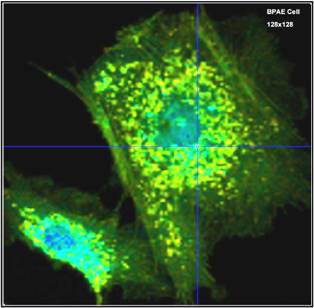
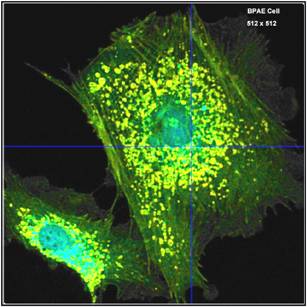
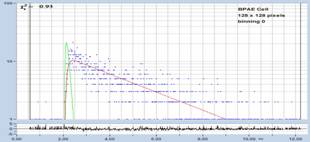
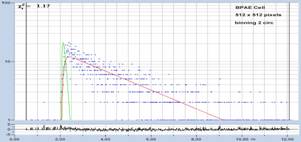
An example is shown in Fig. 47. Two images were recorded with the same count
rate and acquisition time. The left image was recorded with 128 x 128
pixels and analysed with bin=0. The right image was recorded with
512 x 512 pixels, and analysed with bin = 3. Due to the binning,
the right image has the same number of photons per pixel and the same lifetime
accuracy. However, the definition in the image on the right is much better.


Fig. 47: Effect of spatial binning.
Left: 128 x 128 pixels, bin=0, Right: 512 x 512 pixels,
bin=3
The conclusion is that FLIM images should
be recorded at sufficiently high pixel numbers to provide spatial resolution,
and the resulting decrease in photon numbers per pixel be compensated by
binning.
Threshold
The 'Threshold' parameter is used to
suppress the analysis of dark pixels. It is located on top of the decay-curve
windows, see Fig. 48. Pixels with photon numbers lower than 'Threshold' are not
analysed by the fitting procedure, and do not get a colour assigned in the
image. This not only accelerates the calculation process, it also avoids that
the parameter histogram is distorted by invalid values from dark pixels. (see Parameter
Histogram, page 42). Suppression of dark pixels is also essential for global
analysis. The 'Threshold' value either refers to the maximum of the decay curve
or to the total number of photons in it. A selection can be made in the
'Algorithmic Settings' part of the 'Model' panel, see Fig. 88, page 49.

Fig. 48: Threshold parameter
Residuals
The residuals are the differences between
the values of the model function (convoluted with the IRF), fmod(t),
and the data points of the recorded decay curve, n(t) divided by the
square root of fmod(t):

The background of this expression is as
follows. Provided the model function reproduces the shape of decay function
properly the differences between fmod(t) and n(t) can
be considered the 'noise' in the data. The noise comes from the photon
statistics. The average noise amplitude is statistically defined and is
.
If the model function is correct the denominator of R(t) is equal to the
expectation value of the photon number, n(t). That means the residuals should
not depend on the photon number in the respective time channel of the decay function,
and vary randomly with a 'Sigma' of one. That means most of the R(t)
values are expected within the range from -1 to +1, and virtually all values
should be within -5 to +5 (5 Sigma). Any deviation of the convoluted model
function fmod(t) from the photon data, n(t) causes
systematic wobble in the residuals.
Fig. 49 shows an example of residuals for a
near-ideal fit, a fit with a wrong IRF, and a fit with an inappropriate model
function.


Fig. 49: Top to bottom: Residuals for a near-ideal fit, for a fit with a
wrong IRF, and a fit with a wrong decay model.
There is a feature of the residuals which
sometimes causes confusion. When the photon number gets very large the random
variation remains in the range of -5 to +5. However, the systematic wobble
increases. The reason is that the amplitude of systematic variations increases
linearly with the photon number, n, whereas the random variations increase only
with
. The result is
that residuals for decay data with a high number of photons can look ugly even
though the quality of the data is good. Please remember this when you combine
pixel data via the phasor plot or via the 'lock' function of SPCImage.
Reduced Chi-Square (c2)
The c2 parameter is another indicator of the fit quality. It is calculated
by

fmod(t) is the (convoluted) model function, n(t) is the photon
number in the time channel t, and k is the number of time
channels. The background of the formula is similar as for the residuals. The
numerator is the square of the difference between the model function and the
photon number in the corresponding time channel. For large n, the
denominator, n(t)+1, is the square of the expected noise in the photon
number. Consequently, an ideal fit should deliver a c2 of approximately one.
Unfortunately, the c2 has a two unpleasant features. The first one comes from the term n+1
in the denominator. In fact, the correct term to describe the expected noise
would be the photon number, n. However, n+1 must be used to avoid a
singularity for n=0. The result is that c2 drops below one when the decay data contain time channels with low
photon number or channels with n=0. The other confusing feature is that c2 increases for large photon numbers. The reason is the same as for
the residuals: The amplitude of systematic variations increases linearly with
the photon number, n, whereas the random variations increase only with
.
The effect in SPCImage is that c2 increases with increased binning.
This has led to the misconception that binning has a detrimental effect on the
accuracy. This is, of course, not the case. c2 is simply not independent of n. It can be used to compare the fit
quality for different models and different fit parameters for a given decay
data set, but not to compare the quality of decay data which have different
photon numbers.
Decay Curve Window
The decay curve window of SPCImage displays
the decay data (the photons in the subsequent TCSPC time channels) for a single
pixel, the binning area around it, a region of interest, or an area defined by
image segmentation. The decay-curve window with decay data is shown in Fig. 50.
The blue dots are the photon numbers in the subsequent time channels, the green
curve is the IRF (Instrument-Response Function, see page 82). The red curve is
a fit with the model function, the numbers on the right show the fit results
for the data in the decay window. The curve at the bottom are the residuals -
the deviations of the fit from the real data.

Fig. 50: Decay curve window of SPCImage
Decay Curve from an ROI
A decay curve can also be displayed for an
entire ROI, both for a rectangular one or a polygonal one. To combine the decay
data of an ROI into a single decay curve, click on the Lock symbol on the
left of the SPCImage main panel, see Fig. 51. A similar combination can be obtained
via the phasor plot, see page 95. The result is a curve with a substantially
larger number of photons than in a single pixel. Please dont get frightened by
the residuals - they are normalised to the noise (see 'Fit Quality Indicators',
page 27). The noise is small in the combined data, so that even minuscule
systematic deviations stand out prominently.

Fig. 51: Combination of the data of an
ROI into a single decay curve
In combined decay data it can happen that
the result of the combination exceeds the default Y scale of the decay window.
In that case, you can change the scale by a right mouse click into the decay
window, and select Scale. This opens a panel in which you can change the x
and y scale, as shown in Fig. 52.

Fig. 52: Changing the scale of the decay window
Changing the Window Size
The size of the decay-curve window is
variable. For FLIM analysis, the decay curve window is normally located under
the parameter or intensity histogram and the fit parameter panel. To leave
space for these items it is low and wide, as shown in the previous figures. It
can, however, be resized to any size within the boarders of the SPCImage panel.
An example where the decay curve window fills the entire SPCImage panel is
shown in Fig. 53.

Fig. 53: Decay curve window, sized up to the entire area of the SPCImage
software panel.
The general configuration of the main panel
is defined in the 'Preferences' panel, see page 52. For reasonably modern
computers and computer screens we recommend to chose the 'Layout' and 'Lifetime
Window' parameters as shown in Fig. 54. The display configuration then becomes
as shown in Fig. 55. Of course, the colour-coded images does not show up until
you have run 'Calculate Decay Matrix', see page 15. Before that, SPCImage
displays an gray-scale intensity image, see Fig. 23, page 13.

Fig. 54: Recommended 'Layout' and 'Lifetime Window' parameters in the
'Preferences' panel

Fig. 55: Display configuration with the configuration parameters shown
above
There are situations when a FLIM data set
contains several images, e.g. from different wavelength channels. In that case,
you can select the desired image by clicking on one of the tabs below the decay
curve windows. Please see Fig. 56.

Fig. 56: Two FLIM images from the same FLIM data set but from different
wavelength ranges. Selection by the 'Channel' tabs.
For direct comparison, and for
cross-calculation of decay parameters two images can be displayed in one
SPCImage main panel. Click into 'Options', 'Channels', and select 'side by
side'. An example for simultaneous display of two channels is shown in Fig. 57.

Fig. 57: Display of two images from two different recording channels
When two images are displayed the images
can be given names. Click into the blue bar on top of the images, and type the
desired text into the small panel that opens. The text is then displayed on top
of the corresponding image, see Fig. 57.
The display of the lifetime images
themselves is controlled by the 'Intensity' parameters and the 'Colour' parameters.
Both are accessible via 'Options' in the top bar of the main panel.
The intensity parameters are shown in Fig. 58.
The parameter panel is shown on the right, the corresponding image on the left.
There are separate sliders for contrast and brightness of intensity (grey
scale) images and lifetime images. 'Intensity Overlay' defined which
information is displayed as image intensity. Usually it is the photon number,
but other parameters can be selected for special purposes. 'Scaling' is either
'autoscale' or a user-defined number of photons per pixel. 'Other' contains
options to reverse images in x and y, to interpolate the intensity between the
pixels of low-resolution images, and to time-gate images. Commonly used settings
can be seen in Fig. 58.

Fig. 58: Lifetime image with commonly used settings of the intensity
parameters
Most of settings can be used more or less
intuitively. Normally the images are be displayed with autoscaling. The
intensity scale then automatically adjusts to the photon number in the brightest
pixel. The autoscaling may fail if there are overexposed spots in the image,
such as specks of fluorescent dirt. In that case, turn off autoscaling and set
a better intensity range manually or adjust the intensity range via the
Intensity Histogram, see page 37.
An example for time-gating of the intensity
is shown in Fig. 59. The time gate is defined by the cursors in the decay
window, see Fig. 59, right. A late time window has been used for gating,
therefore pixels with short lifetime appear dark.

Fig. 59: Lifetime image with time-gated intensity. The time gate is defined
in the decay curve window (right).
Colour Coding of Selected Decay Parameters
The 'Colour' parameters define the colour
range into which the value of a selected decay parameter is converted. Three
examples are shown in Fig. 60. The figure shows lifetime images of the mean
lifetime, tm, for different settings of the colour parameters. The
left and middle image have a continuous colour scale from tm = 200 to 1000 ps,
but the colour scale goes in opposite directions. The image on the right has a
discrete colour scale. The ranges for blue, green, and red are shown in the
right part of the colour parameter panel.


Fig. 60: Different colour scales. Left: continuous scale, red-green blue.
Middle: continuous scale, blue-green-red. Right: Discrete colour scale.
Selection of Parameter for Colour-Coding
'Coding of' in the lower part of the colour
panel selects the parameter to be colour-coded in the image. Available
parameters are:
tm amplitude-weighted
lifetime of all decay components enabled in general model parameters
tm12 amplitude-weighted
lifetime of the first two decay components of a triple-exponential decay. Used
for FLIO analysis.
ti intensity-weighted
lifetime of all decay components enabled in general model parameters
t1, t2, t3 Lifetimes
of the individual decay components
a1, a2, a3 Amplitudes
of the decay components. a1+a2+a3=1
q1, q2, q3 Relative
intensity contributions of the decay components. Products of component
amplitudes and lifetimes.
N Number of photons in the pixel.
N ratios are used for Redox-Ratio images
Chi2 c2 in the individual pixels
Sca Amount of scattering or SHG, if
scatter enabled in general model parameters
Shift Shift parameter (if left
floating in general model parameters)
Eint FRET efficiency of
interacting donor fraction, Eint = 1 - t1/t2
Eclass Classic FRET
efficiency. Eclass = 1 - tm/t2
1-ti/t2 Classic
FRET Efficiency calculated from ti. For comparison only.
r/r0 Ratio of FRET
donor-acceptor distance, r, and Förster radius, r0
Offset Offset parameter, see general
model parameters
Three examples are shown in Fig. 61. The
figure shows images of the fast decay component, t1, of the slow
decay component, t2, and the amplitude of the fast component, a1,
obtained by double-exponential analysis.

Fig. 61: Colour coding of t1, t2, and a1.
Parameter ranges 0-2ns, 0-2ns, 0.5-1, respectively. Lower part of colour
parameters shown only.
Arithmetic Expressions of two Parameters
Colour coding can be performed either by
the decay parameters themselves or by arithmetic expressions of decay
parameters. Examples are shown in Fig. 62. It shows the ratios, a1/a2,
t1/t2, and q1/q2, of the parameters
of double-exponential decay.

Fig. 62: colour coding of a1/a2, t1/t2,
q1/q2. Parameter ranges 1-20, 0.1-0,5, 1-5, respectively.
Lower part of colour parameters shown only.
Linking Parameters from Different Images
If a FLIM data file contains images from
two or more detection channels arithmetic expressions of parameters from
different channels can be calculated and displayed. An example is shown in Fig.
63. The FLIM data set contains images from two TCSPC channels, indicated by the
tabs below the decay curve window. With the Colour parameters shown SPCImage
calculates a2 from the selected image channel (Channel 2)
divided by a1 of Channel 1. The result is used as colour coding of
the selected image channel (Channel 2).
In the example shown Channel 1 contains FAD
data and Channel 2 NADH data. The selected expression represents the
Fluorescence Lifetime Redox Ratio,
FLIRR = a2NADH / a1FAD
Please see [1], chapter 'Metabolic Imaging'.

Fig. 63: Linking parameters from two image channels of one FLIM data set.
The example calculates a2channel2 divided by a1channel1
SPCImage displays a histogram for the decay
parameter selected for colour-coding the lifetime image. The histogram shows
how often pixels of a given parameter value occur in the lifetime image.
Depending on the settings in Preferences, the histogram either displays the
pure pixel frequency or the pixel frequency weighted with the pixel intensity,
see 'Preferences', Fig. 92, upper right. The parameter histogram serves two
different purposes.
The parameter histogram helps the user
conveniently set an appropriate range of the colour parameters of the image.
The histogram has two cursors, one for the upper end of the parameter range and
one for the lower end, see Fig. 64. A change in the cursor positions in the
histogram (middle) automatically changes the range in the colour parameters
(right) and, consequently, the colour coding of the image.


Fig. 64: Interaction of cursors in the parameter histogram (middle) with
colour parameters (right) and colour-coding of the image.
The buttons underneath the histogram help
the user define the parameter range. The
button zooms the
distribution into the selected parameter range,
zooms out. The
button
sets the parameter range automatically.
Estimation of Decay Parameter Values
The parameter histogram shows the
distribution of the selected decay parameter in the image. Information from the
histogram is therefore more informative than numerical parameter values from a
single spot of the image. By giving a graphical overview, the histogram shows
what the most frequent value is, how broad the distribution is, and what the
shape of the distribution is. The parameter histogram is thus an excellent tool
to compare the results of different FLIM measurements. An example is shown in Fig.
65. The images shows four FLIM data sets obtained from mushroom spores [7]. The
images and histograms show the lifetime of the fast decay component, t1,
of triple-exponential decay analysis. The data are for different spore colour,
from light brown (upper left) to black (lower right). Although lifetimes in the
range of 20 ps (note the colour scale!) are necessarily a bit uncertain
the histograms show a clear trend with the spore colour.


Fig. 65: t1 images and t1 histograms for mushroom
spores of different colour. The histograms show a clear trend from upper left
to lower right.
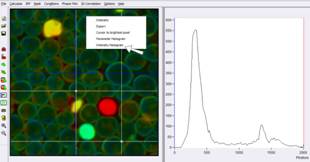
Instead of the parameter histogram,
SPCImage NG can also display an intensity histogram. The histogram type is
switched by a right-mouse click into the image window. This opens a selection
panel, from which either 'Parameter Histogram' or 'Intensity Histogram' can be
selected, see Fig. 66. The parameter histogram is shown on the right in Fig. 66.
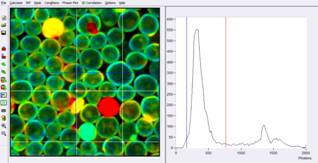
The intensity histogram interacts directly
with the Intensity Parameters of the image display. The histogram therefore has
two cursors by which a suitable intensity range can be selected. An example is
shown in Fig. 66 and Fig. 67. The image includes a number of extremely bright
objects, which are probably dead cells. The normal autoscale procedure (see 'Intensity
Parameters', page 32) normalises the image brightness on these cells. The good
cells are much dimmer and are therefore displayed at low brightness and
contrast. One solution is to open the Intensity Parameter panel, turn off
autoscale, and try with a new 'Max Intensity' value.

Fig. 66: Switching from the Parameter Histogram to the Intensity Histogram.
Histogram shown on the right.
With the intensity histogram, the intensity
range can be adjusted much more easily and quantitatively. Different features
form different peaks in the histogram. It is thus easy to identify the peaks of
different features, and adjust the intensity range to display the desired
feature optimally. In Fig. 67 the right cursor has been set just above the peak
that corresponds to the good cells. The result is that the cells are displayed
at a much more favourable brightness.
With the adapted intensity range, it
becomes obvious that the background of the image is not entirely dark. The reason
in this case is that the image was recorded by simultaneous FLIM/PLIM, and the
PLIM signal leaks in the FLIM recording. In Fig. 68, the background has been suppressed
by pulling up the left histogram cursor. The image adjusted this way has a much
more favourable appearance than the original image, compare Fig. 66.
Fig. 67: Image brightness scale adjusted by histogram cursors.
High-Intensity cursor adjusted to brightness peak of good cells.

Fig. 68: Image brightness scale adjusted by histogram cursors.
Low-Intensity cursor adjusted to brightness peak of good cells.
ROI Definition
SPCImage has several options to define
ROIs. When an ROI is defined the parameter histograms are created from the
pixels inside the ROI only. An ROI selection can therefore be used to obtain
(and compare) lifetime histograms from different regions of the image.
Moreover, decay data from all pixels inside an ROI can be combined into a single
decay curve.
The image window of SPCImage contains three
cursors. The blue cursor is used to select a spot in the image for which a
fluorescence decay curve is displayed. The white cursors are used for
region-of-interest (ROI) definition. To define an ROI by the image cursors move
the cursors in the desired position, see Fig. 69. The area between the cursors
is the ROI. You can zoom into the selected area by the zoom button on the left
of the SPCImage main panel.

Fig. 69: Rectangular ROI, definition by image cursors
A polygonal ROI is be defined by clicking
on the
('Create ROI')
button on the left of the image window. You can also chose 'Mask' in the top
bar and select 'New'. This opens the panel shown in Fig. 70. Select 'Polygon
Mask', and find look for the little red cross in the FLIM image.

Fig. 70: Selection of 'Polygon Mask'
The ROI is created by shifting the red
cross as shown in Fig. 71, left. Every mouse click adds a new point to the
polygon in the spot where the cross has been placed. You can define several
ROIs. To do so, click on the 'Create ROI' button again. This opens a new ROI,
see Fig. 71, middle. To modify an ROI click on 'Mask' in the top bar and select
'Select/Modify'. Click on the ROI you want to modify and shift the points into
the desired position, see Fig. 71, right.

Fig. 71: Definition of a polygonal ROI. Left: Single ROI. Middle: Several
ROIs, every click on the ROI symbol on the left opens a new ROI. Right Modification
of an ROI.
SPCImage can define Lines of Interest.
Click on Mask, and select Line Mode instead of Area Mode. Instead of an
Area, the Define function then defines a line, e.g. along a cell membrane.
Also in the Line mode you can make several definitions in the same image, select
individual histograms for the lines, and combine the decay data of each line in
a single decay curve.
ROIs can not only be defined manually but
also be obtained from the 2D Histogram and the Phasor Plot of SPCImage, see
page 44 and page 46. In these cases the areas are not defined in the images but
in two-dimensional histograms of decay or phasor parameters. Areas defined by
these functions can be much more complex than manually defined ROIs. In particular,
they can contain multiple areas that are not connected to each other, or even
disconnected pixels. The associated patterns are therefore also referred to as
'Masks', and the procedures to obtain them as 'Image Segmentation', please see Fig.
81 and Fig. 86.
Masks are, in principle, ROIs. However,
there are differences: A mask can be much more complex than a normal RIO. In
particular, it can contain multiple areas that are not connected to each other,
or even disconnected pixels. Moreover, a mask can be defined in or derived from
one image of a sample and then applied to another image or a series of images
of the same sample. These images can be from a time series, from a Z stack, or
a multi-wavelength image of the sample. To define a mask, click into 'Mask' in
the top bar, and select 'New', see Fig. 72, left. This opens the selection
panel in Fig. 72, right. A pixel mask can be defined by defining a 'Threshold'
of the photon counts per pixel, by selecting a phasor range in the Phasor Plot,
or a decay-parameter range in the 2D Correlation histogram.

Fig. 72: Definition of a Mask
'Threshold' creates a mask that contains
pixels with numbers exceeding a certain number of photons. The number of
photons is defined by the 'Threshold' parameter above the decay curve window,
see Fig. 73, left. The original FLIM image is shown in Fig. 73, middle. The
mask created by a threshold of 3000 (photons in the decay curve of the pixel)
is shown in Fig. 73, right.
Fig. 74 shows the mask definition via the
Phasor Plot. The selection of the desired phasor range in the phasor plot is
shown on the left, see small red circle. Fig. 74, middle shows the FLIM image
with the pixels within the selected phasor range highlighted. A mask created
from the highlighted pixels is shown on the right.
The mask definition via the 2D parameter
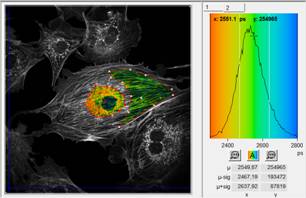
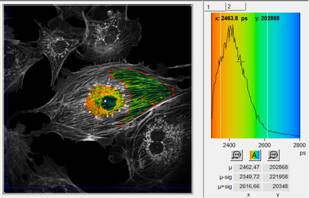
histogram is shown in Fig. 75. The parameter histogram shows the amplitude of
the fast decay component, a1, over the amplitude-weighted lifetime, tm. A parameter
range covering large a1 with long tm was selected. Fig. 75, middle, shows the
FLIM image with the corresponding pixels highlighted. Fig. 75, right, shows the
mask created from the selection.

Fig. 73: Mask definition via 'Threshold'. Left: Threshold definition.
Middle. FLIM image. Right: Mask created by Threshold = 3000 photons per pixel.

Fig. 74: Mask definition via Phasor Plot. Left: Selection of phasor range.
Middle: Image areas highlighted for selected phasor signature. Right: Mask
created from highlighted areas.

Fig. 75: Mask definition via 2D-Parameter Histogram. Left: Selection of parameter
range, a1 over tm. Middle: Image areas highlighted for selected parameter
range. Right: Mask created from highlighted areas.
If an ROI has been defined or a mask has
been created the parameter histogram in the SPCImage main panel refers to the
pixels within the ROI or the mask. An example for two different ROI definitions
is shown in Fig. 76. If multiple ROIs have been defined the desired ROI is
selected after opening 'Mask' in the top bar and selecting 'Select/Modify'.
The ROI is selected either by clicking on the red dot in the centre of it or on
one of the tabs on top of the histogram window, see Fig. 77.

Fig. 76: Parameter histograms for different definition of the ROI

Fig. 77: Selection of one of several ROIs for display of the parameter
histogram
The typical application of a pixel mask is
shown in Fig. 78. The figure shows lifetime images from two wavelength channel
of the same FLIM data set. A mask for pixels of long lifetime was created in
one wavelength channel (450 nm), see Fig. 78, left. The mask was copied
from this channel to the other (590 nm) by 'Mask', 'Copy', and 'Paste'.
The lifetime histogram on the right is thus showing the distribution of the
lifetimes of the pixels selected in the image on the left.

Fig. 78: Application of a pixel mask to images from different wavelength
channels
Combination of Pixel Data into a Single Decay Curve
The
(lock) button in
the task bar left of the lifetime image combines the decay data of all pixels
within an ROI or a mask in a single decay curve. A decay curve for the ROI selected
in Fig. 77, left, is shown in Fig. 79.

Fig. 79: Decay curve of combined pixels within ROI of Fig. 77, left
The resulting decay curve comes from a large
number of pixels and thus contains a large number of photons. It can thus be
analysed at a an accuracy as it is normally achieved only in cuvette-based
experiments.
SPCImage has a two-dimensional histogram
function. It displays a density plot of the pixels over two selectable decay
parameters. These can be tm, ti, t1, t2,
t3, a1, a2, a3, and arithmetic expressions
of these parameters. The 2D histogram plot is opened via '2D Correlation' in
the top bar. An example is shown in Fig. 80. The plot has been configured to
show the values of t2 over the values of t1, see upper
part of the 2D histogram panel.

Fig. 80: 2D histogram of t2
over t1
Image Segmentation by 2D Histogram
Cursors in the 2D histogram can be used to
select pixels of a specific decay signature and back-annotate them in the
image. Pixels with a decay signature within the selected histogram area are
shown in the image window normally, pixels outside the area are shown without
colour, see Fig. 81. The selection also acts on the 1D parameter histogram. It
is build up for pixels selected in the 2D histogram only.

Fig. 81: Selection of pixels with a specific decay signature in the 2D
histogram
Combination of Decay Data Within Selected Parameter Range
The decay data of the pixels within the selected
pixels can by combined into a single decay curve. Click on the
(lock)
button in the task bar left of the lifetime image. The decay curve of the
combined pixels of the image features selected in Fig. 81 is shown in Fig. 82.

Fig. 82: Combined decay data from image features selected in Fig. 81
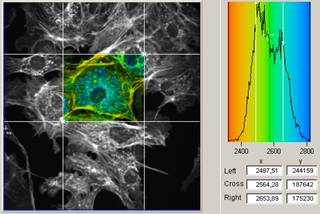
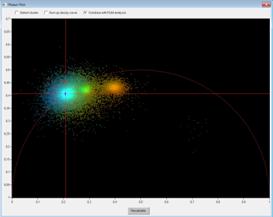
A click on Phasor Plot in the top bar of
SPCImage opens the phasor plot panel, see Fig. 83, right. Every pixel in the
FLIM image (Fig. 83, left) is represented by a dot in the phasor plot (right).
The location of the pixel in the phasor plot depends on the amplitude and phase
of the decay function in the phasor space. To make the correspondence between
the image and the phasor plot clearly visible SPCImage can assign the colours
of the FLIM image to the dots in the phasor plot. This function is activated by
selecting the Combine with FLIM analysis option in the phasor plot panel, see
Fig. 83, right.

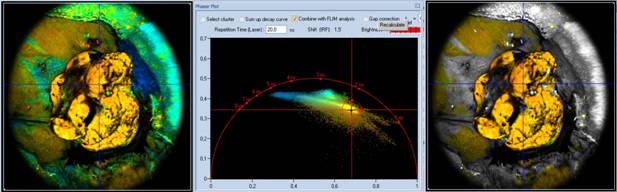
Fig. 83: Left: Lifetime image (left) and phasor plot (right)
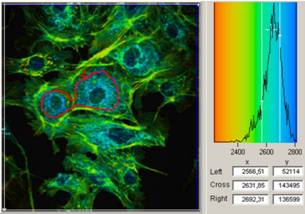
A specific area in the phasor plot can be
selected by a selection tool, see red ellipse in Fig. 83. By 'Select Custer'
the corresponding pixels are back-annotated in the FLIM image. Pixels outside
the selected phasor range are displayed without colour, see Fig. 84.

Fig. 84: Selection of a phasor range and back-annotation of the
corresponding pixels in the image
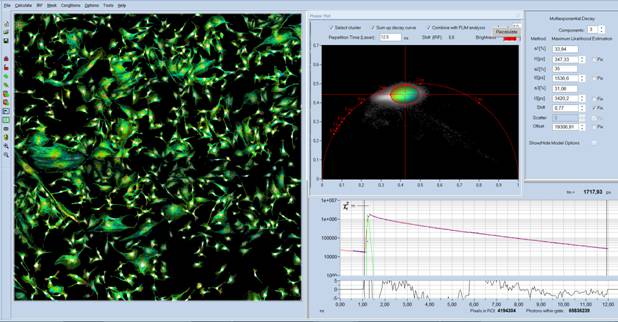
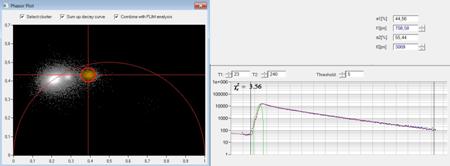
Activation of 'Sum up decay curve' in the phasor plot combines the
decay data of all selected pixels in a single decay curve, see Fig. 85. It
represents an average decay curve of all pixels with a phasor signature inside
the red ellipse. The curve can contain an enormously high number of photons
(more than 88 million in the example, see 'Photons within gate' below decay
curve window). It can thus be analysed at extremely high precision.

Fig. 85: Combination of the decay data of all pixels selected in the phasor
plot in a single decay curve
Image Segmentation
Selecting a phasor range in the phasor plot and back-annotating the
pixels in the FLIM image can be used as an automatic image segmentation
function. It is equivalent to a manual ROI selection yet works with far less personal
effort. Consider an image as the one shown in Fig. 86. You want to perform a
heterogeneity study on the nuclei of the cells. Creating appropriate regions of
interest around all the nuclei manually is almost impossible. But selecting the
nuclei in the phasor plot is easy. The result of the selection is a histogram
of the lifetime, tm, of the nuclei, shown in the upper right are of
the SPCImage panel.

Fig. 86: Image segmentation by phasor plot.
Analysis of Moving Objects
Biological objects can move during the FLIM
acquisition. The images, and, consequently, the fluorescence-decay information,
is then smeared out over the a distance the object has moved during the
acquisition time. A solution to this problem is provided by the Mosaic FLIM
mode of the bh TCSPC modules. A large number of fast scans is performed, and
the images are written in a Mosaic FLIM data array. Of course, the number of
photons in the individual mosaic elements is too low to obtain precise lifetime
information from them. However, if image segmentation is applied to the entire
mosaic, and decay data of the selected image details are combined, a decay
curve with a high number of photons is obtained.
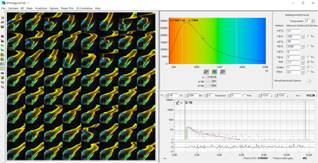
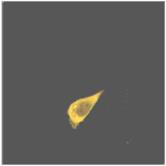
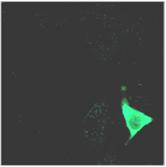
An example is shown in Fig. 87. The mosaic
elements are 0.5-second scans of a water flee. The task is to obtain accurate
decay parameters from the leg (yellow in the FLIM image) of the water flee. The
leg is moving, and thus appears in different locations in the individual images.
The number of photons contained in a single mosaic element is not enough for
precise decay analysis, see decay curve in Fig. 87, top. To obtain precise
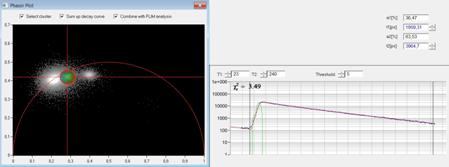
fluorescence-decay information from the leg, load the mosaic in the phasor
plot, and select a phasor range that corresponds to the decay signature of the
leg, see Fig. 87, top. Then select 'Select Cluster' and 'Sum up decay curve',
see Fig. 87, bottom. The result is a single decay curve containing an enormous
number of photons. It can be analysed at high precision with a multi-exponential
decay modes, as shown in the decay parameters in Fig. 87, bottom.


Fig. 87: Analysis of a moving object by
Mosaic FLIM and image segmentation
Details of the model functions and details
of the algorithms, parameter constraints, and IRF definitions are defined in
the Model-Parameters panel. The panel differs for the least-WLS (weighted least
square) fit and for the MLE (maximum-likelihood estimation) fit, see Fig. 88,
left and right. Fig. 88 shows the Model Parameter panel as it was in version
9.0 and before. From version 9.1 on the panel has been changed. The new panel
is shown in Fig. 89 and Fig. 90.
Fig. 88: Model parameters, version 9.0
and before. Left: Weighted-least-square fit. Right: MLE fit.

Fig. 89: Model parameters, version 9.1 and later. Weighted-least-square
fit.

Fig. 90: Model parameters, version 9.1 and later. MLE fit.
Model Options
'Multiexponential Decay' uses the
traditional singe-, double, and triple-exponential decay models, see Fig. 30.
Fluorescence from previous laser pulses is not taken into account. 'Incomplete
Multiexponentials' uses the same basic models but takes into account that the
fluorescence does not necessarily decay completely within one laser pulse period.
It therefore includes residual fluorescence from previous excitation pulse periods.
Please see 'Incomplete-Decay Model', page 18.
'Laser Repetition Time' is required for the
calculation of incomplete decay and for the phasor plot. 'Laser Width' is the
width of the laser pulse. It is used in the determination of the synthetic IRF.
Fit Parameters
'Parameter Constraints' are used to prevent
the algorithm from running into irrelevant parameter ranges.
'Offset' is used for WLS only. It allows
the user to define a time interval where the counts represent the real counting
background. If 'Manual Selection' is not set the offset is determined from the
time interval left from the rise of the fluorescence. 'Offset' is irrelevant
for MLE because it handles the baseline offset as a real fit parameter.
'Algorithmic Settings' define parameters
concerning the fit algorithm. 'Spatial Binning' defines the shape of the area
of pixel binning (when used). It can be 'Square' or 'Circle'. 'Threshold'
defines whether the 'Threshold' parameter in the decay-curve window is the
photon number at the peak of the fluorescence or the total number of photons
in the decay function.
'Fit Method' can be 'WLS' (weighted least
squares), 'MLE' (maximum likelihood estimation), or MOM (first Moment). Note
that only MLE uses GPU processing.
'Iterations' is the maximum number of
iterations performed by the fit algorithm. Please note that it refers to the maximum
number of iterations. In most cases the fit procedure reaches a final fit
earlier, and stops when no further improvement is obtained. Chi2(max)
is a maximum of the c2 allowed for the WLS algorithm.
'Combine Channels' and 'Add Constant' can
be used to tweak the performance of the WLS fit for data with low photon
number. Normally 'Combine Channels' is used, i.e. the algorithm uses
progressive binning of time channels when the average photon counts per channel
approach zero. 'Add Constant' does not bin time channels but adds a 'Minimum
Variance' to the least square. The traditional value is '1' but higher values
can be used to reduce lifetime bias at low photon number.
IRF Definition
The parameters under 'IRF & Shift'
define the IRF and its use in the calculation of the decay functions. We recommend
to use 'Fix the shift before calculation'. The IRF is then shifted into an
optimum temporal position before the calculation starts, but not shifted any
more during the calculation of the entire image. The shift before the
calculation is limited by 'Shift variation'. In case the fit does not
produce reasonable result, please check that 'Shift variation' is large enough.
'Permanently set IRF to x exp(-x)' and
the parameter right of it define the synthetic IRF. The 'Adjust' button on the
right starts an optimisation procedure for the synthetic IRF. Please see 'Instrument
Response Function', page 82. The 'FWHM' of the IRF is displayed for information
only. It includes the IRF model function t/t0 e-t/t0 and
the width of the laser pulse defined by 'Laser Width'.
Shifted Component Models
The 'Delay' parameters are used for the
shifted-component model. t1, t2, t3, are
applied as shifts to the corresponding decay components. Negative values shift
the component to the left, positive values to the right. For application of the
model please [1], chapter 'Ophthalmic FLIM'.
Other Settings
'Other Settings' contain a 'Tail-Enhanced
Fit' to improve the fit of weak slow decay components, a function that
automatically sets of the left cursor of the decay function to the beginning of
the rising edge, and multi-threading. Please note that multi-threading is
irrelevant for MLE with GPU processing - the GPU processing is parallel by definition.
'Collection Time' and 'Dead Time' are used only to determine pile-up corrected
lifetimes, see 'Parameters of the Decay Functions and their Use in SPCImage',
page 89. The parameters are not needed under normal conditions.
Enable / Disable User Access to Parameters
In the default state of SPCImage all model
parameters are accessible by the users. It is, however, possible to disable
user access to selected model parameters. The function was implemented for
clinical applications where certain model parameters must not be changed by unauthorised
users. To disable access to parameters, open the 'Preferences' panel and switch
to 'Expert Mode'. When back in the model parameters, you now can disable parameters
by a double click on the parameter name. The parameter name then turns red,
meaning that the parameter access has been disabled. Please see Fig. 91, left
and middle. To enable access to disabled parameters double-click again on the
name. After switching back to non-expert mode in the Preferences the disabled parameters
are greyed out, see Fig. 91, right.

Fig. 91: Enable / disable access to selected model parameters. Left: Expert
mode in 'Preferences'. Middle: Disabled parameters are shown in red. Right: In
non-expert mode the disabled parameters are greyed out.
The Preferences panel defines general options
of SPCImage. The panel is shown in Fig. 92.
Layout
This part of the preferences defines the layout
of the SPCImage main panel.
Extra Intensity Image: In early SPCImage
versions a separate greyscale intensity image was displayed together with the
lifetime image. In the past 10 years the display of a separate grey scale
image came out of use. Unless you are used to the old style we do not
recommend to use this option.
Widescreen adapted: This option uses an
aspect ratio which is adapted to modern screens with a wide aspect ratio.
Unless you have an old computer screen we recommend to turn on this option.
Toolbar: The toolbar on the left of the
main panel can be displayed with small icons (Lean Icon Set) or large icons
(Extended Icon set). Unless you are very familiar with SPCImage we recommend
'Extended'.
Lifetime Window
Zoom in Lifetime Windows only restricts
zoom operations performed in a lifetime window to this window. If the option is
not set a zoom in the lifetime window zooms also the image in an intensity
window (if one is displayed).
Center ROI to selected pixel couples a
rectangular ROI (selected by the white image cursors) with the blue image
cursor. You can shift the selected area around with the cursor and examine the
pixel-parameter histograms for the different areas.
Distribution Window
Pixel parameter histograms can be weighted
with the pixel intensity (photon number) or just represent the number of pixels
in which a particular parameter value is present. The histograms can be calculated
over the full range of the parameter values or only in the parameter range
selected in the Colour options panel.
Instrumental Response
The IRF can either be displayed or not
displayed in the decay curve window. The calculation of an IRF can be performed
at the brightest pixel or at a selected cursor position. To get an impression
of whether the IRF reasonable fits to the decay data we recommend to always display
the IRF in the decay window. 'Always calculate at brightest pixel' determines
the IRF at the brightest spot of the image. However, this can lead to an
incorrect result if the brightest spot is a speck of dirt or another artefact.
So recommend to turn this option off.
Start Properties
New instance when receiving data from SPCM:
When SPCImage contains data and a new data transfer from SPCM is started a new
instance of SPCImage can be started or previous data can be overwritten.
Starting new instances helps the user compare different data. However, old
instances should be closed from time to time.

Fig. 92: Preferences panel of SPCImage,
showing parameters and recommended settings.
Other Settings
'Expert Mode' puts SPCImage in a mode where
the user can disable and enable the access to certain Model Parameters. There
is no need to set 'Expert Mode' unless you want restrict the access to certain
model parameters or you want enable the access to parameters which have been
disabled before. Please see Fig. 91.
Individual channel settings means that
the binning factor and the cursor position for IRF calculation are individual
for several images (from different SPC modules or from different routing
channels) loaded into SPCImage. Otherwise the same binning and the same
positions for IRF calculations are used.
'Automatic Export' exports data according
to the options in the Export panel when the calculation is finished.
'Ignore GPU' prevents SPCImage from using a
GPU. (The type of the GPU is shown on the right). There is no need to use this
option unless a GPU in the system is causing trouble.
'Configurations' allows you to save and
load configuration data of SPCImage. A click into Options, Configurations,
opens the panel shown in Fig. 93, left. To save the current configuration,
left-click into one of the empty fields on the left. The field will then show a
small icon of the current image for later identification. To load a
configuration, left-click into the field that shows the image of the desired
configuration. To delete a configuration, right-click on the field with the
configuration to be deleted. Configurations can also be stored into and
retrieved from files, please use 'Export' and 'Import' to do so. Important: A
configuration to be loaded must have the same timing parameters and number of
time channels as the current data.

Fig. 93: Loading and saving Configuration data
Data from Cuvette Experiments
Decay data recorded in traditional
cuvette-based setups can be imported into SPCImage and analysed with the normal
set of models and model options. There are two ways to import the data into
SPCImage. Import via the normal import function of SPCImage is shown in Fig. 94.

Fig. 94: Import of single-curve data via the import function of SPCImage
Select 'Single Curve, select the SPC module
from which you want to import data, select a range of 'Pages' (see SPCM
software) and click OK to import the decay curves.
Data can also be transferred to SPCImage by
the 'Send Data' of SPCM. Click into Main, Send Data to SPCImage. This opens
a select panel in the SPCM curve window, see Fig. 95. It contains the numbers
of pages (traces) which are active in the '2D Trace Parameters'. Select the
curves you want to send, and click on OK.

Fig. 95: Sending single curves from SPCM to SPCImage
The result of the data import is a decay
curve window as shown in Fig. 96. With the 'Channel' tabs bottom left you can
switch between the individual curves (pages in SPCM) which you have imported
before. In the example there are three of them. If one of the curves contains
an IRF which you want to use for the analysis, select the corresponding
'Channel'. In Fig. 96 it is in 'Channel 1', and 'Channel 1' has been selected.

Fig. 96: Decay window after import of data. If there are several curves the
desired one can be selected by the 'Channel' tabs. In the example shown Channel
1 is an IRF.
Enclose the signal peak with the cursors,
see Fig. 97. Then declare it an IRF. Either click 'Copy from Decay Data' under
'IRF' or
(data to IRF) in
vertical bar on the left.

Fig. 97: Signal peak enclosed by cursors for IRF definition. Right: Decay
the selected signal part an IRF.
The result is shown in Fig. 98, left. The
green curve is the IRF. Use 'IRF', 'Copy to clipboard' to have the IRF available
for the analysis of decay curves in other channels.

Fig. 98: The signal peak in Channel 1 has been declared an IRF. Right:
'Copy to clipboard' makes the IRF available for analysis of the decay curves in
other 'Channels'.
Then click on a 'Channel' which contains a
decay curve to be analysed. The curve is still shown with the 'Auto IRF', as
shown in Fig. 99. To show it with the measured IRF click 'IRF', 'Paste from Clipboard'.
The result is shown in Fig. 100.

Fig. 99: 'Channel 3' has been selected by the tab bottom left. It contains
a decay curve. It is still shown with the 'Auto' IRF.

Fig. 100: 'Paste from clipboard' has been executed to analyse the data in
channel 3 with the real IRF.
Single-Curve Data from Scanning Experiments
Single-curve data can also be obtained in a
FLIM system. A dish with a solution of the dye to be investigated is placed on
the microscope stage, and FLIM data of the solution are recorded. To analyse
such data, import them into SPCImage by the normal import procedure for FLIM
data. Click the
(lock) button to
combine the decay data of the entire image area (or of an area selected by the
image cursors) into a single decay curve. Select the desired decay model
parameters and fit parameters, and choose or create an IRF. The fit process
starts instantly (no need to start 'Calculate'), and the decay parameters are
shown in the upper right of the SPCImage panel. A result is shown in Fig. 101.

Fig. 101: Combination of decay data from an image area into a single curve,
and data analysis with triple-exponential model. NADH solution, DCS-120 MP
system with HPM‑100-06 detector.
SPCImage allows you to fix one or several
of the component lifetimes. A typical example is the donor fluorescence in FRET
experiments. Theoretically, the slow lifetime component comes from
non-interacting donor molecules. In first approximation, it should therefore be
constant throughout the image. Another example is autofluorescence FLIM. The
variation the mean lifetime is essentially (but not entirely!) caused by variation
in the amplitudes of the components.
To use fixed lifetimes of the components,
first run a double- or triple-exponential analysis with all lifetimes defined
as free fit parameters. Take a look at the lifetime histograms of the component
lifetimes. Then fix the lifetimes to the most frequent values found in the histograms,
and run a new analysis.
An example for autofluorescence data is
shown in Fig. 102. Fig. 102, left, shows the result of an analysis with t1, t2, and t3 free. Fig. 102, left, shows the result of an analysis with t1, t2, and t3 fixed to the maxima of their distributions. The image of the mean
lifetime (tm) is the same. However, the analysis with fixed
lifetimes delivers amplitudes at better signal-to-noise ratio.

Fig. 102: Left: Analysis with free t1, t2, t3. Right: Analysis with t1, t2, t3 fixed to the
maxima of their distributions. The result is the same. However, the amplitudes
are obtained at higher accuracy.
This does not mean that the systematic
errors are similarly low. For all lifetime components there are usually subtle
lifetime variations, induced by variation in the local environment or the
refractive index [6, 18]. If a lifetime used as fixed
parameter is not really constant the fit procedure compensates for the
variation by large changes in the amplitude or in the lifetimes of other decay
components. The result can be large systematic errors in these parameters.
Unlike the 'Pseudo-Global' fit described
above, a true Global Fit does not use a priori information on the values of any
of the component lifetimes. No matter what the component lifetimes are, the
global fit only assumes that the lifetimes of one or several decay components do
not vary over the pixels of the image. That means, the global fit procedure
runs iteration cycles each of which is a complete multiexponential fit of all
pixels of the entire image. Each cycle uses a different combination of the
global parameters until the best possible fit of the entire image is obtained.
Consequently, a global fit is
extremely-computation intensive. Assuming that about 20 global iteration cycles
are required to obtain the final result the calculation time is 20 times that
of a 'normal fit'. In practice, a global fit can therefore only be performed on
a GPU. Therefore, please check whether your system has a GPU and whether
SPCIMage is using it. You see this from the progress bar during the
calculation, see Fig. 103. It should read 'GPU Calculation', and a normal fit
should be finished within a few seconds.

Fig. 103: Progress bar during the calculation of an image
Global analysis is a powerful technique to
obtain accurate amplitude images from multi-exponential FLIM data with constant
component lifetimes. Different than pseudo-global fitting it does not require
that any of the component lifetimes be known. Applications are separation of
fluorophores in samples containing mixtures of fluorophores, FLIM-FRET data,
and, especially, metabolic-FLIM data. In FRET-FLIM data the lifetime of the
non-interacting donor is constant. In metabolic FLIM data the component
lifetimes of bound and unbound NADH and FAD are constant, as are the lifetimes
of NADPH and FMN. The observed changes in the net lifetime are caused by
changes in the amplitudes of the decay components.
For FAD the situation is especially
complicated. The data not only contain the decay components of bound and free
FAD but also a noticeable contribution from FMN. Therefore triple-exponential
decay analysis has to be used. An example is shown in Fig. 104 and Fig. 105.
Both images show the amplitudes, a1, a2, and a3 of bound FAD, free FAD, and
FMN. Fig. 104 shows a 'normal' triple-exponential fit of the data. It is
evident that the signal-to-noise ratio is not sufficient to derive the metabolic
state from the data. Fig. 105 shows the result of a global fit with the
component-lifetimes t1 (bound FAD), t2 (free FAD), and t3 (FMN) defined as
global parameters. The improvement in signal-to-noise ratio is amazing. Not
only are the amounts of bound and free FAD reproduced clearly, also the amount of
FMN is obtained at high accuracy.

Fig. 104: Human epithelial bladder cells, amplitudes a1, a2, and a3.
Standard MLE fit

Fig. 105: Same cells as above. Global fit with global component lifetimes
t1, t2, t3.
Traditional Multi-wavelength FLIM data from
SPCImage represent 16 'channels', each of which holds a complete lifetime image
for a particular wavelength interval. The data are imported into SPCImage NG as
shown in Fig. 106, left. After importing, individual channels can by accessed
via 16 individual tabs at the bottom of the decay window, see Fig. 106, bottom
right. Individual channels can be selected and analysed individually. However,
it is more comfortable to use the Analyse all function as shown in Fig. 106.
The function runs the decay fit procedure in all wavelength intervals of the
multi-wavelength FLIM data set.

Fig. 106: Left: Importing multi-wavelength data. Right: The data are
analysed by 'Calculate', 'Decay Matrix (all channels)'. Individual wavelength
channels can be selected via the tabs below the decay-curve window.
The wavelength channels have separate fit
parameters. Before starting the analysis, it is recommended to switch through
all wavelength channels and set appropriate fit parameters and fit conditions.
When this is done, click on Calculate, Analyse all.
Recent SPCM versions have a 'Mosaic
Imaging' function which can be used to record multi-wavelength FLIM data.
Mosaic Imaging records the wavelength channels into individual mosaic elements
of a large data array. When such data are imported via the import function of
SPCImage the wavelength channels are treated as routing channels, and show up
as individual images, as shown in Fig. 107.
However, when the data are sent to SPCImage
via the 'Send to SPCImage' function of SPCM the entire array set is sent as a
single, large FLIM image, see Fig. 107. Of course, the size of mosaic data is enormous,
and the processing effort is high. The analysis can therefore be reasonably
performed on systems with a GPU only. The result of the analysis is shown in Fig.
107.

Fig. 107: Multi-wavelength FLIM mosaic, sent to SPCImage by the 'Send to
SPCImage' function of SPCM. The data are treated as a single, large lifetime
image. Amplitude-weighted lifetime of double-exponential decay.
Analysing the entire multi-wavelength array
at once has two advantages over analysis of the individual images. First, the
procedure is more convenient to the user and, second, the array can be analysed
with global analysis. This is helpful if there are decay components the lifetimes
of which do not change with the wavelength. However, there is also caveat.
Multichannel detectors usually display a systematic wobble in the transit time
over the channels. This can show up as a systematic lifetime variation over the
elements of the mosaic. The analysis should therefore be performed with free
'Shift', see Fig. 107 upper right. In the Model Parameters, please turn off
'Fix Shift before calculating Image'.
Mosaic FLIM data contain an array of images
in a single FLIM data file. The data can represent a spatial mosaic of images,
a Z stack of images, time-series images, or multi-wavelength data. Spatial or
temporal Mosaic FLIM data have the same data structure as a single, large FLIM
image. The data can either by sent to SPCImage via the Send Data to SPCImage'
or be loaded into SPCImage via the 'Import' function. Once imported, the data
are analysed in a single analysis run. An example is shown in Fig. 108. The
mosaic shows 64 images of a leg of a live water flee, recorded with an
acquisition time of 0.5 seconds each. Each element of the Mosaic has
252 x 256 pixels, hence the entire mosaic has 2048 x 2048
pixels. The array was analysed by the MLE algorithm, with a double-exponential
model.

Fig. 108: Mosaic FLIM of the leg of a water flee, 64 images of 0.5 s
acquisition time.
When the data are analysed the traditional
way the large image size of a mosaic array may result in very long calculation
times. We therefore recommend to run the calculation on a GPU and use the MLE
algorithm. The calculation time is then reduced to about 10 seconds.
If there is no GPU in the system we
recommend to try an analysis of a small part of the Mosaic image first (e.g. of
a single mosaic element). Check the results and make sure that the correct
model function and the correct model parameters are selected. When you are satisfied
with the result start the analysis of the entire mosaic.
INT FLIM ('Intensity-FLIM') is used to
obtain a linear intensity scale of FLIM at high count rates. The data are a
combination of normal TCSPC FLIM data and pixel intensity data from a fast
counter. Images are created by using the fluorescence-decay curves in the
pixels from the TCSPC channel and the intensities from the counter channel. Please
see [1] for technical details.
INT FLIM data are transferred from SPCM to
SPCImage by the 'Send Data' command. SPCM sends both the FLIM data and the
intensity data, and SPCImage loads the intensity data as 'Additional Intensity
Data', see Intensity Parameters. The corresponding function is activated
automatically, see Fig. 109. Once loaded into SPCIMage, INT FLIM data are
processed like standard FLIM data, see Fig. 110.

Fig. 109: Transfer of INT FLIM data to SPCImage. Left: Send Data command in
SPCM. Right: SPCImage automatically uses the fast-counter data as 'additional
intensity data'.

Fig. 110: SPCImage with INT-FLIM data
Analysis of phosphorescence lifetime
images, in principle, works the same way as FLIM analysis. A few differences,
do, however, exist.
Sending PLIM Data to SPCImage
The SPCM main panel of a typical FLIM/PLIM
setup is shown in Fig. 111. From left to right, there is a FLIM window, a PLIM
window containing only photons in the laser-off periods, and a PLIM window
containing the photons both from the laser-on and the laser-off phases, see
waveforms above the display windows.

Fig. 111: Main panel of SPCM, configured
to show intensity images of FLIM data, of pure PLIM data in the laser-off
intervals, and of FLIM and PLIM data in the complete laser-on-off (pixel time)
period. Above: Waveforms seen after sending the data to SPCImage
Because the FLIM and the PLIM data have
totally different time scales they cannot be simultaneously loaded into
SPCImage. To use the Send Data function of SPCM, select Selected Window in
the SPCM Application Options. For sending data, click on the SPCM window you
want to analyse, and then transfer it to SPCImage by the Send Data command.
Note that you can send data from a FLIM window or from a PLIM window, but not
both together. The waveforms you see after sending the data of the windows to
SPCImage are shown above the SPCM panel in Fig. 111.
IRF of PLIM
For PLIM data acquired from samples with
pure phosphorescence usually the automatic IRF generated by SPCImage can be
used, see page 82. An example can be seen in the PLIM image of an Autumit
crystal shown in Fig. 112.

Fig. 112: Analysis of PLIM data from an Autumit crystal. Synthetic IRF,
single-exponential decay model.
If a sample emits also fluorescence, and
FLIM is to be measured simultaneously with PLIM the situation can be different.
In that case a much longer laser-on phase (extending over a substantial part of
the pixel) is used. The IRF of the phosphorescence signal is then no longer a
short pulse, and it may not correctly be reproduced by the automatic IRF
generation.
There are several ways to obtain an IRF in
these cases. One of them is to use the fluorescence pulse present in the data.
Phosphorescence is an emission from the triplet state. The triplet state is
populated by intersystem crossing from the first singlet state, S1. This is the
state from where fluorescence is emitted. Strictly seen, the IRF of fluorescence
is therefore the fluorescence pulse. The fluorescence pulse during the laser-on
phases can usually be identified in PLIM data. The IRF is then generated by
placing the cursors at the beginning and the end of the fluorescence and
clicking the curve to IRF button. An example is shown in Fig. 113.

Fig. 113: IRF from the fluorescence pulse during the laser-on phase. The
fluorescence pulse has been selected by the cursors in the curve window, and
declared an IRF via the Curve to IRF button. The green curve is the IRF.
The procedure shown above works well if the
laser-on period is dominated by fluorescence. However, if the dominating
signals component in the laser-on phase is phosphorescence (this can happen for
phosphorescence labels based on rare-earth chelates) the waveform does not
represent the effective IRF. In that case, an IRF can be recorded from a sample
showing only fluorescence.
A third way is to set the cursors in the
curve window to the beginning and the end of the Laser-on phase, and define
a rectangular IRF by the
(Rectangular
IRF) button. Although the generated IRF ignores possible ringing or distortion
in the laser-on modulation waveform it usually works reasonably well. A fourth
way to deal with the phosphorescence IRF is to ignore it altogether and fit
only the phosphorescence data in the laser-off periods, see paragraph below.
Fit Procedure
PLIM data from samples that emit
predominately phosphorescence are analysed in analogy to FLIM. The only difference
is the time scale, which may require to increase the maximum lifetime in the
model parameter panel (see page 49). An example has been shown in Fig. 112. The
automatic IRF was used, and the decay profile was fitted by a
single-exponential model.
PLIM data containing also fluorescence pose
a bigger challenge to data analysis. To fit both the fluorescence and the
phosphorescence the waveforms had to be fitted with a model that contains a
component with the shape of the IRF for the fluorescence and one or several
decay components for the phosphorescence. A model that takes these components
into account is, in principle, available in SPCImage: It is a multi-exponential
decay model with Scatter. The problem of this model is that it is (because of
the scatter) extremely sensitive to the IRF shape. The IRF shape is, however,
not accurately known. A better way to fit the data is therefore to restrict the
fit to the laser-off phase where the signal does not contain fluorescence.
An example is shown in Fig. 114. The data
from the complete pixel period were sent to SPCImage. The IRF was taken from
the fluorescence pulse during the laser-on phase. The phosphorescence data were
fitted only in the decaying part of the curve, selected by the cursors in curve
window. The intensity options for the lifetime image were set to Gated Intensity,
see 'Intensity Parameters', page 32. The intensity data are therefore only from
the interval between the cursors, i.e. from the phosphorescence.

Fig. 114: Analysis of PLIM data from yeast cells stained with ruthenium dye
FLIM Data Acquired Simultaneously with PLIM
FLIM data acquired simultaneously with PLIM
are analysed as normal FLIM data. Send the FLIM data from the FLIM windows of
SPCM to SPCImage by the 'Send Data' function. In SPCImage, select the desired
model function and model parameters, and start the calculation with 'Calculate
Decay Matrix'. It can happen that the FLIM data contain a large counting
background. The background can originate from phosphorescence bleedthrough in
the fluorescence channel. If fluorescence and phosphorescence were recorded in
different TCSPC channels with different detectors the background can often be
minimised by using the right filters. However, if the spectral overlap of the
signals is large, or if fluorescence and phosphorescence were recorded in the
same TCSPC channel some background can be unavoidable. In that case, leave the
'Offset' in the fit conditions floating and use MLE analysis. MLE is less
susceptible to high background than WLS. An example is shown in Fig. 115.

Fig. 115: FLIM data from simultaneous FLIM/PLIM experiment
The Batch Processing function allows the
user to process a large number of similar FLIM data files automatically. The
function is reached via 'Calculate' and 'Batch Processing'. Before you start
the function import one of the sdt files you want to analyse and calculate a
lifetime image from it. Make sure that you have set all model parameters and
colour parameters correctly. When you are satisfied by the result proceed by
clicking on 'Batch Processing'. This opens a file selection window as shown in Fig.
116, upper right. Select the files to be processed.

Fig. 116: Batch Processing, selection of the .sdt files to be processed
Batch processing starts when you click the
'Open File' button in the selection window. One after another, SPCImage loads
the selected files, analyses them, and writes the results into .img files.
Current results are displayed in the status window in the upper right, see Fig.
117.

Fig. 117: Batch Processing in progress. Subsequent files are loaded,
analysed, and saved.
The analysed data are saved as shown in Fig.
118. The data file extension is .img. The img files contain not only the
decay parameters of the individual pixels but also the raw data. Therefore, an
img file can be loaded, and the data can be re-analysed with a different model
or with different fit parameters.

Fig. 118: Saving the data analysed by SPCImage
FLIM data can be exported into other data
formats via the Export panel, see Fig. 119. The options under Matrix
produce ASCII files of the decay parameters in the pixels of the image.
Traces generates ASCCII files of the curves displayed in the curve window.
Image produces BMP or TIFF files of the intensity or lifetime image. SPCImage
versions later than August 2012 have a batch export function. It is used to
export data of a series of .img files that have been generated by the Batch
Processing function (see page 17). The file selection panel is shown in Fig. 119,
right.

Fig. 119: Left: Export Options of SPCImage. Right: File selection for Batch
Export.
Frequently used commands are accessible in
a vertical task bar left of the image window. Turn on 'Extended Icon Set' in
the 'Preferences to see all available commands.
Binning of all pixels within a rectangular of polygonal ROI into a
single decay curve.
Undo binning of pixels within the ROI.
Defines a polygonal ROI. Decay parameters are calculated only within
this ROI.
Discards a previously defined polygonal ROI.
Declares the curve displayed in the decay window an IRF. The parts of the curve outside the cursor range are cut off.
Defines a rectangular IRF. The width and the temporal location are defined by the cursors in
the curve window.
The current fit
conditions are stored. These include a previously determined IRF, the
time-range for the fitting procedure, and the region of interest in the image.
Loads fit the conditions which were stored before.

Zooms into the cursor range of the
displayed image or zooms out of the zoomed part of the image.
When an image is recorded by a scanning
microscope the point-spread function of the microscope lens is usually
oversampled to obtain best spatial resolution. As a rule of thumb, the
diameter of the central part of the Airy disc should be sampled by 5 ´ 5 pixels, see Fig. 120, left. In practice even higher oversampling
factors often occur unintentionally. Under these conditions lifetime data
should be calculated from several binned pixels. When the binning function of
SPCImage is used the lifetime images are built up from the unbinned intensity
pixels and the binned lifetime pixels. This yields substantially improved
lifetime accuracy without noticeable loss in spatial resolution [5]. Sampling
artefacts are largely avoided by overlapping binning, see Fig. 120, right.

Fig. 120: Left: Oversampling of the Airy disc in the intensity image and
binned pixels for lifetime calculation. Right: Overlapping binning of pixels
for lifetime calculation.
The binning is controlled by the Bin
parameter above the decay curve window. The function of the parameter is shown
in Fig. 121. Bin defines the number of pixels around the current pixel
position. Please note that the number of pixels of the lifetime image is not
reduced. Only the lifetimes are calculated from the combined pixels, the intensities
remain unbinned.

Fig. 121: Function of the binning parameter, n. Binning 'Square' (left) and
'Circular' (right).
Fig. 122 shows lifetime images obtained
from 256 ´ 256 pixel raw data. The binning parameter is 0 (left) and
2 (right). The upper row was calculated by the WLS fit, the lower row by MLE.
It can be seen from these images that the binning causes no loss in image
definition and negligible loss in lifetime detail. However, the binning
considerably reduces the noise in the lifetime data.
Fig. 122: Lifetime images of a convallaria sample, 256 x 256
pixels, 256 time channels. Left: Binning parameter 0. Right: Binning parameter
2. Upper row: WLS fit. Lower row: MLE fit. Double-exponential fit,
amplitude-weighted lifetime, tm. Lifetime range from 200 ps
(blue) to 600 ps (red)
A conclusion from the figure above is that
FLIM should always be recorded at sufficiently high pixel number to
provide the desired spatial resolution. The resulting decrease in the number of
photons per pixel can later be compensated by the binning function of SPCImage
[5]. Please see Fig. 47, page 26.
Of course, an image with a higher pixel
number occupies more data space in the computer and on the hard disc. But this
is rarely a problem for state-of-the-art computers and data storage devices.
Also the data-processing time for the larger number of pixels is no longer a
problem. With a GPU, the processing time is rarely more than a few seconds even
for the largest images.
SPCImage NG has no function for binning of
TCSPC time channels. Temporal binning leads to sampling artefacts, such as
uncertainty in the position of the IRF and the rising edge of the fluorescence.
With the advanced fit algorithms used in SPCImage NG temporal binning is
detrimental to the fit accuracy. Please see [5].
In a real FLIM system the fluorescence is
excited by laser pulses of non-zero width, and detected by a detector that has
a temporal response of non-zero width. The effects on the temporal shape of the
recorded signal are shown graphically in Fig. 123. The laser pulse can be
thought to be broken down into a sequence of (infinitely) narrow pulses of
different amplitude (Fig. 123, left). Each of these sub-pulses produces a
fluorescence decay of an amplitude proportional to the amplitude of the
sub-pulse, and starting at the time of the sub-pulse. The sum of all these
decay functions is the real optical waveform of the fluorescence signal, see
bottom of Fig. 123, left.
The real fluorescence signal is measured by
a detector the temporal response of which has non-zero width, see Fig. 123,
middle. Again, the detector response can be thought to consist of a sequence of
infinitely short pulses. Also here, the measured waveform is the sum of shifted
signal components of different amplitude.

Fig. 123: Left: Convolution of the laser pulse with the fluorescence decay.
Middle: Convolution of the real fluorescence waveform with the detector
response. Right: Laser pulse and detector response combined into IRF pulse,
convolution of fluorescence decay with IRF.
The transformation of the signal waveforms
shown above is called convolution. In a linear system, the convolution of
signal waveforms is a commutative operation. The laser pulse shape and the
detector response can therefore be combined in a single instrument response
function, or IRF, see Fig. 123, right. The IRF is the convolution of the laser
pulse shape with the detector response, or the pulse shape the system would
record if it directly detected the laser. The convolution of the fluorescence
decay function with this IRF delivers the same result as the two subsequent
convolution steps shown in Fig. 123, left and middle.
Mathematically, the convolution of the
fluorescence decay with the IRF can be expressed by the convolution integral
,
with fm(t) = measured
fluorescence function, f(t) = true fluorescence decay function.
The convolution integral cannot be
reversed, i.e. there is no analytical expression of f(t) for a given fm(t)
and IRF(t). There is also another implication: The measured data contain
noise from the statistics of the photons, i.e. fm(t) itself
is not accurately known. Any attempt to directly calculate f(t) from the
recorded data is therefore in vain. The standard approach to solve the de-convolution
problem is to use a fit procedure: A model function of the fluorescence decay
function is defined, the convolution integral of the model function and the IRF
is calculated, and the result is compared with the measured data. Then the
parameters of the model function are varied until the best fit with the measured
data is obtained [16]. This operation is repeated for all pixels of the image.
Basic Multi-Exponential Decay Model
The basic model functions used in SPCImage
are sums of exponential terms:
Single-exponential
model: 
Double-exponential
model:
with a1 + a2
= 1
Triple-exponential model:
with
a1 + a2 + a3 = 1
The models are characterised by the
lifetimes of the exponential components, t, and the amplitudes of
the exponential components, a. In principle, models with any number of
exponential components can be defined. However, higher-order models become so
similar in curve shape that the amplitudes and lifetimes of the components
cannot be obtained at any reasonable certainty. Therefore, FLIM analysis does
not use model functions with more than three components.
To account for possible detector background
or daylight pickup the models used in SPCImage includes an Offset parameter in
the models. The composition of the three basic model functions is illustrated in
Fig. 124.


Fig. 124: Single, double, and triple-exponential decay models
The basic decay models can be combined with
a number of options, see below.
Incomplete-Decay Model
The incomplete-decay model includes the fluorescence
remaining from the previous laser pulses in the model function, see Fig. 125.

Fig. 125: Incomplete decay model. Red: Decay function. Orange: Residual
fluorescence from previous laser pulses. Black: Sum of decay function and
fluorescence from previous laser pulses. Shown for single-exponential decay.
Similar models exist for double- and triple-exponential decay functions.
A comparison of the standard decay model and the incomplete decay
model is given in Fig. 126. A single-exponential decay was recorded at
80 MHz repetition rate. The fluorescence lifetime was 4 ns.
Consequently, there is a noticeable contribution from fluorescence excited by
the previous laser pulses. It can be seen left of the rising edge of the
fluorescence pulse. The standard decay model interprets this signal as an
offset, see Fig. 126, top. As a result, an imperfect fit of the fluorescence is
obtained. The fluorescence lifetime is determined too short because a fraction
of the fluorescence photons in the tail of the decay is interpreted as background
signal.
The Incomplete-Decay model interprets the
signal correctly. It obtains a near-perfect fit of the decay curve, and delivers
the correct lifetime, see Fig. 126, bottom. The incomplete model also has
advantages when a multi-exponential decay has slow lifetime components. According
to our own experience, it not only delivers these components with their correct
amplitudes and lifetimes but also delivers a more pronounced χ2
minimum. This is especially the case if the part left of the rising edge of the
fluorescence pulses is included in the fit.


Fig. 126: Fit of a 4-ns-decay excited at
80 MHz by a standard decay model (top) and an incomplete-decay model
(bottom). The incomplete decay model interprets the signal left of the rising
edge correctly, and thus obtains a better fit.
Difficulties can arise if the data contain
both an offset and a contribution from incomplete decay. The influence on the
shape of the model functions is very similar, especially if the incomplete
decay is caused by very slow decay components. The advantages of the incomplete
decay model can therefore be fully exploited only if there is negligible offset
(from daylight, detector dark counts or afterpulses) in the decay signals. The
Offset should then be set to zero and fixed. The incomplete decay option is
available in SPCImage since 2003. A theoretical evaluation has been published
recently by Leung et al. [15].
Shifted-Component Model
The shifted-component model has been
developed for analysis of fluorescence-lifetime-ophthalmoscopy (FLIO) data. In
FLIO data, the fluorescence of the fundus of the eye is overlaid by
fluorescence from the front parts of the eye, especially from the crystalline
lens. The lens fluorescence causes unpredictable changes in the detected
fundus lifetimes. Moreover, the lens fluorescence causes a distortion in the
rising edge of the fluorescence signal. This makes it difficult to shift the
IRF in the correct position. SPCImage NG therefore has a shifted-component
model of the form
f(t) = a1 e(-t+td1)/t1
+ a2 e(-t+td2)/t2 + a3
e(-t+td3)/t3
where td1, td2, td3
are temporal shifts of the corresponding decay components. The td
parameters are fixed parameters which are given by the geometry of the
measurement object, in this case the eye.
It turned out that the lens fluorescence in
the FLIO data is almost entirely represented by the slow decay component, e(-t+td3)/t3. For geometric reasons the lens component arrives about 150 ps
before the fundus fluorescence. The data are thus analysed with td1
= td2 = 0 and td3 = ‑150 ps.
The shifted-component model massively improved the reliability of FLIO analysis.
It even made it possible to separate the signals from the fundus form that of
the crystalline lens [1, 3]. Please see [], chapter 'Ophthalmic FLIM'.
Multi-Exponential Models with Fixed Decay Times
Multi-exponential decay analysis, both with
the basic models and with the incomplete-decay and shifted-component options,
can be performed with fixed decay times of the components. The idea behind this
is that the fluorescence lifetimes are often known, or can be determined by
independent measurements. Fixing one or several decay times does, of course,
result in a substantial increase in accuracy for other decay parameters.
Conceivable applications are FRET, where the fluorescence lifetime of the
non-interacting donor is supposed to be constant, and NADH and FAD FLIM, where
the lifetimes of the unbound components are mostly constant.
Unfortunately the idea has a flaw. Except
for a few fluorophores with extremely rigid molecular structure fluorescence
lifetimes depend on the molecular environment. They can therefore not a priori
be considered to be constant. However, if the value to which the decay time has
been fixed is not correct or not constant throughout the sample large systematic
errors in the other decay parameters can result. Fixed decay times should
therefore used consciously and carefully, and the results be checked versus
analysis with free parameters. Please see 'Pseudo-Global Analysis', page 57.
Fixing Shift, Scatter and Offset
Shift, scatter and offset can be fixed in
the basic model parameters, see 'Model Functions', page 17. There is no objection
against fixing scatter and offset to zero if a look at the decay functions show
that their contribution is negligible.
Fixing the 'Shift' can be more problematic.
'Shift' is a temporal offset of the data referred to the IRF. On the one hand,
the analysis runs faster and more accurate with fixed shift. On the other hand,
a wrong shift directly offsets the obtained decay times. We therefore recommend
to leave the shift unfixed but set the option 'Fix shift before calculating
image' in the model parameters, see Fig. 88, page 49. The analysis procedure
then determines the optimum shift first, then fixes it to the determined value,
and after that performs the decay analysis with the fixed shift.
Weighted Least Squares
The principle of the traditional
least-square fit is shown in Fig. 127. The differences, delta(t), between the
points of the model function, fmod(t), and the data points, n(t),
are calculated. In principle, the squares of the differences, delta(t)2,
could be calculated, summed up, and this sum be used as an optimisation
parameter.
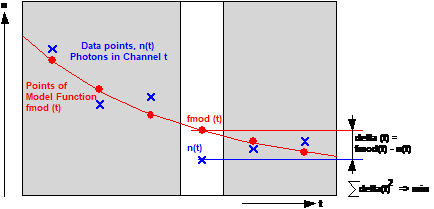
Fig. 127: Least-square fit
For fluorescence decay curves, this
procedure has a flaw. The photon numbers, n(t), are Poisson-distributed. That
means the noise is larger in channels with higher photon number: The noise in n(t)
is n(t)1/2. Therefore, the squares of the differences must be
weighted with the square of the reciprocal expectation value of the noise, i.e.
1/ n(t).
The correct weighting of the delta-squares
is the problem of the least-square fit. The correct weight according to the
Poisson distribution would be 1/n(t). This is, of course, not possible
because there are time channels with n(t)=0. The weight of these
channels would be infinite, which is a practical impossibility. The commonly
used solution is to use a weight of 1/(n(t)+1):

The weighting with 1/n(t)+1 avoids
the singularity problem for n(t)=0, but, of course, does not weight the
deltas in channels with low n(t) or n(t)=0 correctly. The result
is a bias towards shorter lifetimes for decay data of low photon number.
Maximum-Likelihood Estimation
MLE is based on calculating the probability
that the values of the model function correctly represent the data points of
the decay function. The principle is illustrated in Fig. 128. To each point of
the model function, fmod(t), a Poissonian distribution,

with an expectation value equal to E=fmod(t),
is associated, see Fig. 128, right. From this distribution the probability, p(n(t)),
is calculated. The probability p(n(t) tells how likely it is that the
point of the model function is a correct representation of the data point. p(n(t)
is calculated for all time channels, i.e. for all pairs of data points and
model-function points. The product of these probabilities is the probability
that the model function represents the data. The parameters of the model
functions are then optimised until the maximum probability,
, is obtained.

Fig. 128: Principle of MLE fit. For each point of the model function, fmod(t),
a Poissonian distribution is associated. The function delivers a probability
p(n(t)), that a given data point, n(t) fits to the corresponding point of the
model function. The product of p(n(t)) over all time channels is used for
optimising the parameters of the model function.
The MLE fit has no problem with data points
with low photon number or even with a photon number of zero. The Poissonian
distribution associates correct probabilities to all these situations, and the
product of these probabilities correctly describes the quality of the fit. Consequently,
there is no bias toward shorter lifetime, as it occurs in the weighted least
square fit.
The first moment of a photon distribution
is the average arrival time of the photons. There is a simple relation between
the first moment and the fluorescence lifetime: The lifetime is the difference
of the first moments of the decay curve and the IRF, see Fig. 129. The
advantage of first-model calculation is that the lifetime is obtained at ideal
accuracy. There is no error contribution from numerical effects or fit
uncertainty.
The disadvantage is that the first moment
is correct only if the decay data are free of background and if the entire
decay curve is included in the calculation. Moreover, first-moment calculation
also does not resolve multi-exponential decay functions into their components.
When first-moment calculation is applied to multi-exponential data the result
is an apparent lifetime which is close to the lifetime obtained by a
single-exponential fit.

Fig. 129: First-moment calculation of fluorescence lifetime. The lifetime is
the different of the first moments of the decay curve and the IRF.
Two examples of lifetime calculation via
the first moment are shown in Fig. 130. The calculation interval (cursor range)
in Fig. 130, top, includes all photons of the decay data. The lifetime obtained
from first-moment calculation is correct. In Fig. 130, bottom a calculation interval
was selected that does not include the later part of the decay function.
Consequently, the first moment calculated in the range selected is too small,
and the lifetime is determined too short.


Fig. 130: Lifetime calculation via the first moment. Top: All photons of the
decay function have been included in the moment calculation. The obtained
(single-exponential) lifetime is correct. Bottom: If the late photons are not
included in the calculation the lifetime is determined too short.
Users are often uncertain which model, in
particular which number of exponential components, they should use to fit the
data. In most cases the answer is simple: Use a number of decay components
equal to the number of fluorophores or fluorophore fractions you expect to contribute
to the fluorescence of the sample.
If there is no a priori knowledge about the
fluorescence mechanisms in the sample the model can be found by trial and
error. Select a characteristic spot of the sample.
Increase the binning factor until you see a clean fluorescence decay function.
Then change the number of components and check the displayed c2 and the curve of the residuals. A good fit is characterised by a c2 close to one, and residuals showing no noticeable systematic
variations. Often you see a poor fit already by comparing the fitted curve
(red) with the photon data (blue) in the decay window.
In most cases your decay curves will be
fitted adequately by a single- or double-exponential model. If you define more
exponential components than needed you normally obtain two components of almost
identical lifetime, or an additional lifetime component of very long lifetime
and low amplitude.
An example is shown in Fig. 131. Fitting
the data with only one component (Fig. 131, top) delivers a large c2 and clearly visible systematic variation in the residuals. With some
experience, you may also spot systematic deviations between the decay data and
the red curve calculated by the fitting procedure.
Fitting the data with two components
delivers a perfect c2 and removes any systematic deviations
in the residuals. This is an indication that the fit cannot be improved by
adding more exponential components.
An attempt to fit the data with three
components (Fig. 131, bottom) indeed does not deliver any improvement. Instead,
it delivers a third lifetime component almost identical with the second one.
This is a clear indication that the double-exponential model is the right one.


Fig. 131: Top to bottom: Fitting a decay profile with one, two, and three
exponential components
The statistical errors of the fluorescence
parameters are, of course, smallest if the correct model function is used.
However, the parameters used in the model should be restricted to those actually
needed to describe the measured fluorescence waveform. If more parameters are
used the fit may achieve a slightly better χ2 but the individual
parameters may vary wildly. This is especially the case if parameters are used
that have an almost identical influence on the model function. A few typical
cases of over-determined models are described below.
Single-Exponential Decay Fitted with Double-Exponential
Model
If a single-exponential decay function is
fitted with a double-exponential model the fit procedure delivers two decay
components of nearly identical lifetimes. The lifetimes are correct, and an
amplitude or intensity-weighted lifetime (tm or ti) derived from the components will be
correct as well. However, the amplitudes of the two components have no
influence on the model function. The amplitudes will thus remain undetermined,
and may fluctuate strongly. An example is shown in Fig. 132. FLIM data of a
rhodamine 110 solution were recorded and analysed by a single- and a
double-exponential model. The average photon number per pixel is 2700.
Rhodamine 110 in water delivers a near-perfect single-exponential decay. Fig.
132, left shows the result of a single-exponential fit. The lifetime image is
nicely homogenous. The lifetime distribution shows a relative variance of about
0.019. This is the theoretical value: The expected relative variance for a
photon number N is
, i.e. 0.019 for
2700 photons.
The lifetime image and the distribution
obtained by a double-exponential model are shown in Fig. 132, middle. The
lifetime distribution has a relative variance of 0.026. This is more than the
theoretical value but still reasonably good. However, the amplitudes, a1
and a2, are fluctuating wildly because they have no influence on the
shape of a double-exponential model with two almost equal lifetimes. See Fig. 132,
right.

Fig. 132: Comparison of
single-exponential and double exponential model applied to single-exponential
decay. Rhodamine 110 solution. Left: Fit with single-exponential model,
lifetime image and lifetime distribution. Middle: Double-exponential model,
intensity-weighted lifetime. Right: Double-exponential model, amplitude ratio,
a1/a2.
The situation is similarly difficult for
real double-exponential decay profiles with component lifetimes that very close
to one another [13]. Also here, reasonably accurate values are obtained for the
mean and average lifetime, tm and ti, but not necessarily
for the lifetimes and amplitudes of the individual components.
Shift Parameter and Extremely Short Lifetime Component
The convolution integral of a lifetime
shorter than the width of the IRF is very similar to a shift of the curve, see Fig.
133. The shift parameter may thus conflict with a short decay component: A
slightly shorter lifetime and a slightly larger shift and vice versa deliver
almost similar shapes of the model function. The effect is variation of the
lifetime and the shift in opposite directions. Therefore, the shift parameter must
be fixed when lifetimes on the order of the IRF width or shorter are to be
determined.

Fig. 133: The result of a convolution of the IRF with a fast decay function
is very similar to a shift. Simulated data, IRF width 25 ps FWHM
Scatter Parameter and an Extremely Short Lifetime
Similar problems can occur if the signal
contains SHG components and extremely fast lifetime components. Also here, a
change in the amplitude of the fast decay component can be compensated by an
opposite change in the scatter. The best advice is record the fluorescence and
the SHG signal independently through different filters.
Offset Parameter and Long Lifetime
Long lifetimes are difficult to distinguish
from an offset in the signal. This is especially the case when the fluorescence
does not fully decay within the recorded time interval or within the excitation
pulse period. The situation is further complicated by the fact that an apparent
offset can have different reasons: It can be a real offset caused by daylight
pickup or afterpulsing of the detector, or it can be residual fluorescence from
the previous pulses. An example is shown in Fig. 134.
In Fig. 134, left, the apparent offset left
of the rising edge of the fluorescence pulse was fitted by the Offset parameter
of SPCImage. The fit quality looks good, although subtle deviations can be seen
in the tail of the decay curve. In Fig. 134, middle, the offset was fixed to
zero. The signal part left of the rising edge is not fitted. Nevertheless, the
fit of the tail looks better than Fig. 134, left. The lifetime is determined
more than 12% longer than in Fig. 134, left.
The reason becomes clear when the data are
fitted by the Incomplete Decay model, see Fig. 134, right. The Offset
parameter was fixed to zero. The fit is good, and also the signal left of the
rising edge fits correctly. The result shows that the apparent offset is
fluorescence from the previous pulses that has not completely decayed.
Interpreting it as an offset due to background signals (Fig. 134, left) is
wrong and leads to the wrong lifetime.


Fig. 134: Left: Offset parameter used to fit the signal left of the rising
edge of the fluorescence pulse. Middle: Offset parameter fixed to zero, signal
left of rising edge not fitted. Right: Offset parameter fixed to zero, signal
left of rising edge fitted by Incomplete Decay model.
Wrong interpretation of the offset is a
frequent source of obtaining wrong lifetimes in two-photon microscopes.
Lifetime standards, such as fluorescein, have lifetimes on the order of 3 to
5 ns. At 80 MHz repetition rate, the fluorescence does not completely
decay between the excitation pulses, causing the problems described above.
To avoid the offset problem we recommend to
strictly avoid daylight pickup. If there is still an offset in the signal,
check whether it is fitted by the incomplete decay model. In that case, do not
forget to set the correct repetition rate in the Model Parameter Options, see Fig.
88, page 49, and fix the Offset to zero. If the signal part left of the
rising edge is fitted correctly by the incomplete decay model the apparent
offset is residual fluorescence.
SPCImage NG has functions to derive the IRF
from recorded FLIM data. The calculation of the 'Auto IRF' is based on the
assumption that the fluorescence lifetime is long compared to the width of the
IRF. In that case, the rising edge of the fluorescence signal is (almost) the
integral of the IRF. The IRF can therefore be obtained from the fluorescence
signal: The calculation procedure fits the rising edge of the fluorescence
signal with a suitable function, rise(t). The differentiated function,
d Rise(t) / dt, is the IRF. Fig. 135, left, shows how this
works. A typical result is shown on the right.

Fig. 135: Calculation of IRF from fluorescence data. Principle shown left,
typical result shown right.
The calculation of the Auto IRF is
performed automatically every time raw data are loaded. It is run on combined
decay curves from pixels of an area centred around the Hot Spot, i.e. from
the brightest part of the image. Occasionally, it happens that the hot spot
does not contain valid decay curves, e.g. if it is a speck of dust or another
contamination. In that case, disable 'Always calculate at brightest pixel' in
the preferences panel (see Fig. 92, page 53), select a better position by the
blue image cursor, and click on 'IRF', 'Auto'.
Analysis with the automatic IRF delivers a
reasonably good fit and a colour-coded tm image virtually identical with an image obtained with the real IRF,
compare Fig. 142, page 86. The tm in the selected spot is nearly the
same. Even the lifetimes and amplitudes of the decay components do not differ
by more than 10%. This is the more surprising as the fastest decay component
has a lifetime of only 400 ps, which is not far from the width of the
instrument response function.
Nevertheless, there may be cases when the
IRF calculation does not deliver the correct result. This can happen when the
decay curves contain lifetime components with decay times close to or shorter than
the IRF width, or with a contribution from SHG. The rising edge is then faster
than the integral of the true IRF. Consequently, the IRF is calculated too
short. This may bias fast lifetimes towards longer values, and make it
difficult to extract an SHG contribution from the FLIM data.
The idea behind the fully synthetic IRF is
to model the IRF by a function of the type
irf(t) = t/t0
e-t/t0
The function has only one parameter, t0,
which determines the width. The function has a steep rise, and a slow, almost
single-exponential tail. It closely resembles the IRF of a GaAsP hybrid
detector.
Fig. 136: IRF of a TCSPC system with
HPM-100-40 hybrid detector (left) and shape of the function
irf(t) = t/t0 e-t/t0 (right)
The function is also a good approximation
to the IRFs of normal PMTs and most single-photon avalanche photodiodes. To
account for possible influence of the laser pulse shape the function is convoluted
with a Gaussian curve of the (known) laser pulse width, tl.

The advantage of the fully synthetic IRF is
that it works also for short decay times, in presence of ultra-fast components,
and in combination with the shifted-component model.
The parameter t0 can further be
refined by an automatic optimisation procedure. The principle is illustrated in
Fig. 137, left. The procedure runs a fit of the fluorescence model parameters
together with the parameter t0 to the decay data. The IRF in
subsequent steps of the procedure is shown in Fig. 137, right. Provided a
correct model function is used the result is an optimised IRF function, with
the correct width parameter, t0. The optimisation procedure is accessible
via the 'Model' parameters panel, see page 49. Make sure that 'Permanent IRF'
is set and that the left decay-window cursor is left of the rising edge of the
decay curve.


Fig. 137: Left: IRF optimisation
procedure. Right: IRF shape in subsequent steps of the procedure.
For successful IRF optimisation it is
important that a reasonable model of the fluorescence decay function is used.
If the decay model does not have enough components the IRF optimisation may
compensate the deficiency of the decay model with a wrong IRF. On the other
hand, if the model is too flexible, the combination of the decay model and the
IRF model can become 'over-determined'. The procedure can then fit the data
with a small IRF width, t0, and a large lifetime of the fast decay
component, t1, or vice versa. The situation occurs sometimes with
triple-exponential decay models when amplitude of the third component is low.
If this happens, go back to a double-exponential model for IRF optimisation,
and then switch to a triple-exponential model for decay analysis.
The IRFs from the procedure above yield
surprisingly precise fit results. An example of FLIM analysis with a synthetic
IRF is shown in Fig. 138.

Fig. 138: Plant tissue FLIM data analysed with synthetic IRF.
Amplitude-weighted lifetime of triple-exponential decay model. Autofluorescence,
emission wavelength 500 to 550 nm. The result is virtually identical with
the result of an analysis with the real IRF, see Fig. 142.
Principle
To say it plainly: Most of the measured
IRFs are wrong. We therefore do not recommend to use a measured IRF unless this
is absolutely unavoidable. IRF measurement and the associated pitfalls are
described in [1]. If you think you need a measured IRF or you can't withstand
the temptation to measure one, please follow the instructions given below.
The IRF is obtained from scattering or SHG
data. The data must be reasonably free of fluorescence, reflections, and
background. It is important that the IRF data be recorded under the same
conditions as the FLIM data to be analysed. In particular, TCSPC system
parameters affecting the timing and the time scale, such TAC, CFD, SYNC parameters
and ADC Resolution, must be the same. Cable lengths, optical path length, delay
box settings, DCC detector gain, and electrical laser power (in the scan control
panel) must be the same. Needless to say, IRF data must be from the same
detector channel as the data to be analysed.
A frequent source of errors in IRF
acquisition is baseline shift due to counting background. Surprisingly, the
problem is rarely mentioned in the TCSPC literature. If the IRF data contain
background - either from room light pickup or from afterpulsing of detectors -
the fit of the convoluted model to the fluorescence data delivers wrong
lifetimes.
The effect of IRF background is illustrated
in Fig. 139. The convolution of the model function with the true (background-free)
IRF yields a waveform that represents the measured fluorescence decay function.
Convolution of the model function with a continuous background yields an
integral term, see Fig. 139 middle right. Convolution with an IRF containing
background delivers the measured fluorescence decay function plus an integral
term, see Fig. 139, lower right. It does not fit the waveform of the
fluorescence data. Even a small IRF background can affect the fit results
noticeably: The background extends over far more time channels than the true
IRF and thus has a large influence on the convolution integral.

Fig. 139: Effect of background in a recorded IRF on the result of the
convolution with the decay model
Background correction of recorded IRF data
is therefore essential. In principle, background could be subtracted from the
data. However, the background contains noise. Subtracting the average
background from all time channels does not fully clean up the data. Therefore
SPCImage allows you to cut off the signal portions outside the valid
part of the IRF.
Loading a Measured IRF
To generate an IRF from measured data
proceed as follows:
-
Import or load an .sdt or .img data FLIM file
that contains IRF data.
-
Use the blue image cursor to select a region
that contains good data. Keep away from fluorescent inclusions or suspicious
contaminations. Increase the binning until you see a clean waveform in the
curve window.
-
Place the cursors in the decay-curve window at
the beginning and the end of the valid part of the IRF.
-
Click on the
(Curve to IRF)
button. This declares the selected part of the curve an IRF.
-
Click on the
(Store
Conditions) button. This saves the IRF you generated. The IRF will stay in the
'Fit Conditions' until you store a new one.
-
To retrieve the IRF after loading new FLIM data
click on
or Load fit
conditions.
-
Alternatively, you can use 'IRF', 'Copy to clipboard',
and 'Paste from clipboard'. This saves/retrieves the IRF for the current
session.
One-Photon IRF
Fig. 140 through Fig. 142 give an example of
analysing one-photon FLIM data with an IRF obtained from scattering data.
Fig. 140, left, is a scattering image
obtained from aluminium oxide ceramics. The image was recorded following the
instructions in [1], 'IRF
Recording'. No laser blocking filter was used. To reduce possible fluorescence
from contaminations or laser background at longer wavelengths a 460±20 nm
bandpass filter was inserted in the detection beam path. The image therefore contains
mostly scattered laser light.
A suitable spot was selected in the image (Fig.
140, left) and the binning factor increased until about 10,000 photons were in
the curve. The waveform obtained this way is shown in (Fig. 140, middle). A
click on the
(Curve to IRF)
button declares the data points within the cursor interval an IRF. See green
curve in Fig. 140, right. The generated IRF can be saved and recalled by 'Save
IRF' and 'Load IRF' in the model parameter panel. Within the same SPCImage
session, the IRF can be temporarily saved and recalled by 'Copy to Clipboard'
and 'Paste from Clipboard' under 'IRF' in the top bar.

Fig. 140: Left: Scattering image recorded from Al2O3
ceramics. Middle: Waveform in selected spot of the image. Large binning used,
cursors pulled to the beginning and the end of the pulse. Right: IRF after
clicking the Curve to IRF button. The result is saved by the Save IRF button
in the Model Parameters.
Analysis of FLIM data with the IRF
generated above is shown in Fig. 141 through Fig. 142. The SPCImage main panel
after loading the FLIM data is shown in Fig. 141, left. The IRF is still the
Auto IRF or the synthetic IRF. Then the measured IRF is loaded by the Load
IRF command. The result is shown in Fig. 141, right.

Fig. 141: Data to be analysed with the measured IRF. Left: After loading the
data, synthetic IRF. Right: After loading the real IRF via the Load fit
conditions command.
Please notice that there is virtually no
difference between the synthetic IRF (left) and the measured IRF (right). Also
the decay parameters are closely the same. That means the entire effort to
measure the IRF and prepare it for use in SPCImage was unnecessary. The
synthetic IRF works equally well.
Once the measured IRF is loaded data
analysis is performed the same way as with a synthetic IRF. Analysis with a
triple-exponential incomplete decay model is shown in Fig. 142.

Fig. 142: Data analysed with measured
IRF. Plant tissue, autofluorescence, emission wavelength 500 to 550 nm.
Compare with result of analysis with synthetic IRF, Fig. 138
In two-photon microscopes a measured IRF is
usually obtained from SHG data. Good SHG signals are obtained from crystalline
urea or sugar, see [1], 'IRF Recording. The procedure to generate an IRF from
the FLIM data is the same as described for one-photon excitation. Load the data
into SPCImage, select a time interval around the signal peak, and declare the
data within the cursor interval an IRF. An IRF from SHG of sugar is shown in Fig.
143.

Fig. 143: IRF from SHG of sugar. DCS-120 MP multiphoton FLIM system,
HPM-100-06 detector
Often an IRF can be derived directly from
the sample investigated, without data from an external IRF measurement. This is
the case when the sample contains collagen, starch or other SHG-active compounds.
A spot with a dominating SHG signal can then be selected in the FLIM image and
the corresponding waveform declared an IRF.
An example is shown in Fig. 144. A collagen
structure was selected in the intensity image, see Fig. 144, left. The data
shown in the curve window confirm that the selected spot is dominated by an
ultra-fast signal, see Fig. 144, middle. However, the signal is not entirely
free of fluorescence, see the tail in the recorded waveform. However, the
amplitude of the tail is three orders of magnitude below the peak of the SHG
pulse. Consequently, a reasonable IRF is obtained by just deleting the signal
outside the SHG pulse. To do so, enclose the SHG pulse by the decay cursors and
declare the selected part an IRF, see green curve in Fig. 144, right.
Fig. 144: Generating an IRF from the SHG
signal from collagen in a tissue sample. Left to right: Select a collagen
structure in the intensity image, set the cursors in the curve window to the
beginning and the end of the SHG pulse, and declare the selected part of the
curve an IRF. The IRF is the green curve shown right.
The IRF is then used to analyse the image
from which it was extracted. A result is shown in Fig. 145.

Fig. 145: Analysis with the IRF derived from SHG in the same image
Parameters of
the Decay Functions and their Use in SPCImage
The mean
lifetime, tm, is an average of the lifetimes
of the components of a multi-exponential decay weighted by their amplitude
coefficients. It is
for a
single-exponential decay: 
for a
double-exponential decay:
with

for a triple-exponential decay:
with 
If a decay function deviates from a single
exponential function the mean lifetime tm, is not the same as the apparent lifetime obtained from a
single-exponential fit or from first-moment analysis. To obtain an equivalent
of the apparent lifetime the lifetimes of the decay components had to be
weighted by their integral intensities, see average lifetime. Calculating a
mean lifetime from a multi-exponential decay is therefore often considered
incorrect. However, the mean lifetime has a real physical meaning:
The terms antn in the calculation of the mean lifetime are proportional to the
intensities contained in the individual decay components. Thus, the mean
lifetime is proportional to the total fluorescence quantum efficiency of the
emitting species [14]. The mean lifetime is therefore the correct value to
calculate classic FRET efficiencies from a multi-exponential decay. Thus, if you use TCSPC FLIM to verify steady-state FLIM results you
have to use the mean lifetime. Please note, however, that the FRET efficiency
obtained this way averages the emission of all donor molecules, no matter
whether they are linked to an acceptor or not. The classic FRET efficiency
therefore does not necessarily deliver the correct distance, see [1], Chapter Förster
Resonance Energy Transfer (FRET)'.
Mean Lifetime of the First Two Components, tm12
tm12 is the amplitude-weighted
lifetime of the first two decay components of a triple-exponential decay:

It is used to display fundus images in FLIO
analysis, please see [1], chapter 'Ophthalmic FLIM'.
The average lifetime, ti, is the
average of the lifetimes of the decay components weighted by their integral intensities.
The integral intensity of a lifetime component is the product of its lifetime
and its amplitude. The intensity-weighted lifetime, ti, is thus
for a single-exponential decay 
for a double-exponential decay 
for a triple-exponential decay 
For a mono-exponential decay, the average
lifetime is, of course, identical with the lifetime of the decay. For
multi-exponential decay functions the average lifetime comes close to lifetimes
obtained by single-exponential analysis or by modulation techniques. ti
is therefore also called apparent lifetime. The average lifetime should
therefore be used if a decay profile is not truly single exponential but its
lifetime has to be compared with a single decay time given in the literature.
Please note also that the average lifetime, ti, is more sensitive to changes in
the slow lifetime component while the mean lifetime, tm, is more
sensitive to changes in the fast component.
A practical example is shown in Fig. 146.
The sample has a pronounced double-exponential decay. From left to right, the
figure shows the amplitude-weighted lifetime, tm, the intensity
weighted lifetime, ti, (both from a double exponential fit), and the lifetime
of a single-exponential fit. Differences are clearly visible.

Fig. 146: Left to right: Lifetime images
of the mean (amplitude-weighted) lifetime, the average (intensity-weighted) and
the lifetime of a single-exponential fit. Convallaria sample, the decay
profiles deviate strongly from single-exponential functions.
Lifetimes of the Decay Components, t1, t2,
t3
For a multi-exponential decay model the
lifetimes of the individual components, t1, t2, or t3,
can be selected and used as colour of the lifetime image. The lifetimes are
often used to distinguish several fluorophores or different binding states of a
single fluorophore present in the same pixel. For example, in FRET measurements
there is usually an interacting and a non-interacting donor fraction. In this
case t1 is the lifetime of the interacting fraction, t2
is the lifetime of the non-interacting one. In autofluorescence measurements t1
and t2 are the lifetimes of unbound and bound NADH fractions [17, 9 Skala, JBO].

Fig. 147: Lifetimes of the components of a
double-exponential decay. Same data as in Fig. 146.
Amplitudes of the Decay Components, a1, a2,
a3
The colour of the image can be assigned to
one of the amplitudes, a1, a2, or a3, of a
multi-exponential decay. Amplitude images are used to show the relative
concentration of similar fluorophore molecules in different local environment,
different binding states, or different states of FRET. Amplitudes of the decay
components are often surprisingly stable, with noticeably higher
signal-to-noise ratio than the lifetimes.

Fig. 148: Amplitudes of the components of
a double-exponential decay. Same data as in Fig. 146.
Ratios of Lifetimes of Decay Components
SPCImage can display ratios of the
lifetimes of different decay components. The lifetime ratio of two decay components
is especially useful for FRET. The fast component, t1, is the
lifetime of the interacting donor fraction. The lifetime of the slow component,
t2, is the lifetime of the non-interacting donor. The ratio of both
is directly related to the distance of donor and acceptor. The charm of this
approach is that it is calibration-free: The reference lifetime is the
non-interacting donor lifetime, t2. t2 is derived from the
same specimen, the same cell, and the same pixels as the interacting-donor
lifetime t2. Variations in t2, e.g. by variation in the
refractive index or in the ph, have no influence on the distance calculation.
Ratios of Amplitudes
Ratios of amplitudes can be used the same
way as the amplitudes themselves. For example, the ratio a1/a2
of a FRET decay is the concentration ratio of the interacting and
non-interacting donor fraction. Amplitude ratio images often have a
surprisingly high signal-to-noise ratio. In metabolic FLIM the a1/a2
ratios of NADH and FAD are indicators of the metabolic state, see [1], chapter 'Label-Free
FLIM of Cells and Tissue'.
The ratio of the intensities of an NADH
image and an FAD image is the 'Redox Ratio, an important indicator of the
metabolic state of a cell. In NADH/FAD FLIM data recorded by multiplexed TCSPC
the intensities are available via the photon numbers, Nnadh and Nfad
of the corresponding recording channels. The ratio, Nfad / Nnadh
is the redox ratio.
Classic FRET Efficiency, Eclass
An image of the FLIM-based classic FRET
efficiency is obtained by selecting Eclass from the list of
decay parameters. The classic FRET efficiency is

tm and t2 come from an analysis of the donor image with a double-exponential
model. Eclass is the lifetime-based equivalent of the
intensity-based classic FRET efficiency. However, please keep in mind that it
does not necessarily represent the real FRET efficiency. Eclass
is an average of the real FRET efficiencies of the interacting and the
non-interacting donor fraction. This is a general problem of the classic FRET
approach, not a problem of SPCImage [8]. Please see [1], chapter 'Förster Resonance Energy
Transfer (FRET)'.
Classic FRET Efficiency, Single-Exponential Equivalent
SPCImage offers also a classic FRET
efficiency

It approximates the FRET efficiency that is
obtained if the donor signal is treated as a single-exponential decay or measured
with a FLIM system that only delivers single-exponential 'Lifetimes'. The
result neither resembles the intensity-based FRET Efficiency nor the real FRET
efficiency of the interacting donor fraction. It is simply wrong [8], please
see [1], chapter 'Förster
Resonance Energy Transfer (FRET)'. SPCImage makes it available to allow the
user to compare FRET results with published data based on wrong FRET calculations.
FRET Efficiency of Interacting Donor Fraction, Eint
The decay components of the interacting and
non-interacting donor fraction can be used to calculate the real FRET
efficiency of the interacting donor fraction. The FRET efficiency is

t1 and t2 are the lifetime components from the interacting and non
interacting donor, respectively. Please note that Eint is
significantly higher than the classic FRET efficiency because it does not
include a contribution from the non-interacting donor fraction. Please see [1], chapter 'Förster Resonance Energy
Transfer (FRET)'. Of course, Eint can only be used if the
decay has been analysed by a double-exponential model and the components of the
double-exponential decay are clearly resolved.
FRET Distance, r/r0
SPCImage is able to calculate the ratio of
the donor-acceptor distance, r, to the Förster radius, r0. Please
see [1], chapter 'Förster
Resonance Energy Transfer (FRET)'.
Relative Intensity Contribution, q1, q2,
q3
q1, q2, and q3
are the relative intensity contributions of the decay components. The q values
are the products of the lifetimes with their amplitude factors. The q values
can be useful to visualise the distribution of different fluorophores in
autofluorescence images. The q values are especially sensitive to slow lifetime
components.
The scatter is the amount of light emitted
as a prompt response to the laser pulse. Except for directly scattered laser
light leaking through improperly selected filters, the source may be Raman
scattering, or, in two-photon excitation systems, second-harmonic generation
(SHG). An image with the scatter parameter used as colour shows SHG or other
prompt effects clearly, see Fig. 149. A possible fluorescence background can be reduced by using
time-gating of the intensity. Please note that exact scatter determination
requires the use of the real instrument-response function.

Fig. 149: Extraction of SHG signals from FLIM data. Left: Intensity image.
Middle: Image with colour representing the amount of prompt response. Right:
Further suppression of fluorescence background by time-gating the intensity.
Accuracy of the Fit: c2
The c2 parameter indicates the quality of the fit. A c2 image may be used to check whether the used model is appropriate in
all areas of the image. An interesting application of the c2 image has been described in [12 Jones,
JBO 2008]: The decay data in a lifetime image are expected to be
mono-exponential or close to mono-exponential. The data are therefore analysed
by a single-exponential model. An increased c2 indicates that the corresponding pixels are contaminated by another
fluorophore of different lifetime, usually autofluorescence. Autofluorescence
by itself deviates so strongly from a single-exponential decay that it shows up
clearly in a c2 image.
An example of a c2 image from a single-exponential analysis is shown in Fig. 150,
left. An a1/a2 image of a double-exponential analysis is
shown right. It can clearly be seen that large c2 correlates with large a1/a2, i.e. with strong
deviation from the single-exponential decay.

Fig. 150: c2 image (left) of a single-exponential
analysis and a1/a2 image (right) of a double-exponential
analysis. c2 is largest where a1/a2
is large, i.e. where the decay profile has the strongest deviations from a single-exponential
function.
Offset
The offset in the decay data can be used as
a colour parameter. This may be considered useless because an offset usually
originates from daylight pickup or from detector background. However, an offset
may also be phosphorescence. Phosphorescence lifetimes are much longer than the
laser pulse period normally used for FLIM. The phosphorescence signal than piles
up over many signal periods and causes an baseline offset in the decay data.
This can be used to identify phosphorescence, i.e. from Lanthanide dyes or from
various nanoparticles. An example is shown in Fig. 151.

Fig. 151: Amount of phosphorescence derived from offset in decay data. Yeast
cells stained with ruthenium dye.
Principle
The phasor plot is
based on the analysis of the decay data in the frequency domain. A transformation
of the decay data, n(t), into the frequency domain delivers a
complex function of frequency, G(w) + iS (w) with
and 
As it turns out, a good representation of
the decay function is obtained already if only G and S at the
fundamental repetition frequency (the first Fourier component) are used. The
decay function is then described by just two numbers, G and S,
for w=2p/T, where T is signal period of the fluorescence
signal. Because G and S are no longer functions of w in this case
they can also be considered weighted moments of the decay functions, n(t),
where the weight functions are cosine and sine functions.
and 
The data points G + iS, can
also be expressed by the magnitude, M, and the phase, j, in the
plane of complex numbers:
j
= arctan S / G
For analysis of real measurement data still
the IRF has to be included in the calculation. In the complex Fourier data
plane the convolution integral transforms into a multiplication i.e.
G+iS
= (Gfl + Sfl) × (Girf +
iSirf) or
(Gfl +
iSfl) = (G+iS) / (Girf + iSirf)
which can also be written as

In this form, the representation of a decay
curve is called a 'phasor', and a density plot of the phasors of all pixels of
an image or an image area is called a 'phasor plot' [10, 11].
The relationship between different decay
curves and their phasors is illustrated in Fig. 152. The phasors of single-exponential
decays are located on a semi circle in the G-S plane. The phasor
of a fast decay (a) is located on the right, at low phase and large amplitude.
The phasor of a slow decay (b) in located farther left, at larger phase and
lower amplitude. The phasor of a double-exponential decay (c) is a linear
combination of the phasors of the decay components. It is located inside the
semicircle.


Fig. 152: Relationship between decay functions in the time domain (left) and
phasors in the frequency domain (right)
A fluorescence-lifetime image and the
corresponding phasor plot are shown in Fig. 153. The pixels of objects with
different decay functions in the FLIM image (left) form clusters in the phasor
plot (right).

Fig. 153: Lifetime image (left) and phasor plot (right). Pixels with similar
decay profiles form clusters in the phasor plot.
Different phasor clusters can be selected
see Fig. 154 and Fig. 155 , left, and the corresponding pixels back-annotated
in the time-domain FLIM images, see Fig. 154 and Fig. 155, right. SPCImage is
able to calculate combined decay curves over the selected areas (Fig. 154 and Fig.
155, middle), or create decay parameter histograms over the selected areas.
Fig. 154: Left: Selecting a cluster of phasors in the phasor plot. Middle:
Combination of the decay data of the corresponding pixels in a single decay
curve. Right: Display of the pixels corresponding to the selected cluster in
the phasor plot.


Fig. 155: As figure above but other phasor clusters selected
Truncation Effects
As all moment-based lifetime techniques,
phasor analysis is sensitive to truncation effects. If the signal is not recorded
over the full signal period, photons at the end of the period may be not
included in the phasor calculation, with the result that the phasor is not
correct. Recording intervals shorter than the signal period is a common
situation in TCSPC FLIM. The time measurement principle covers just a bit less
than one signal period, and recording two signal periods and extracting just
one period from the data would dramatically decrease the photon efficiency.
Moreover, TCSPC decay functions are usually analysed by fit procedures in the
time domain. Recording the full signal period is not necessary in this case. It
is more important that the photons are recorded into sufficiently small time
channels, especially when fast decay components are present.
The effect of recording an incomplete signal
period is illustrated in Fig. 156. As long as the fluorescence decays
completely in the observation time interval (Fig. 156, left) there are no
photons in the last (un-recorded) part of the signal period. Phasors calculated
from the data are correct. If the fluorescence does not fully decay within the
observation time photons in the last part of the signal period are not included
in the calculation of the phasor (Fig. 156, right). Both G and S become larger
(note that the weight function for S is negative in the truncated part), therefore
the phasor shifts to left and (to a lesser extend) up in the phasor diagram.

Fig. 156: Systematic errors can occur if the fluorescence does not entirely
decay in the observation time interval
In practice, truncation effects have little
influence on the performance of the phasor plot in SPCImage. SPCImage uses the
phasor plot mainly for image segmentation. Decay parameters are derived from MLE
processing in the time domain. Lifetimes and amplitudes are therefore correct
even in presence of truncation effects.
When the phasor plot is used in combination with the
incomplete-decay model SPCImage detects possible truncation situations. It then
fills the missing part of the decay data by data points from the fitted model
function, see Fig. 157. Of course, this substitution works precisely only if
the correct model function is used and a time-domain analysis has been performed
before the phasor plot is calculated.

Fig. 157: Filling of the missing part of the decay data by data points from
the fitted model function.
Ambiguity of the Phasor Representation
Another rarely described feature is the
ambiguity of the phasor representation. Unless a phasor is located directly on
the semicircle (i.e. the decay function is single-exponential) it does not
unambiguously represent a particular decay profile. As shown schematically in Fig.
158, a given phasor can be obtained for different combinations of component
lifetimes and amplitudes.

Fig. 158: Ambiguity of the phasor representation. A given phasor within the
semicircle can represent different decay profiles.
Possible ambiguity should be taken into
consideration if pixels of similar phasor signature are combined into a single
decay curve. The combined curve can, in principle, contain decay components
from different decay curves with the same phasor. It need not strictly
represent the decay profile of every individual pixel within the selected image
area.
1.
W. Becker, The bh TCSPC Handbook. 11th edition
(2025), available on www.becker-hickl.com
2.
W. Becker, A. Bergmann, L. Sauer,
Shifted-component model improves FLIO data analysis. Application note,
available on www.becker-hickl.com
3.
Becker & Hickl GmbH, FLIO data acquisition
and analysis. The road to success. Application note in presentation-style,
available on www.becker-hickl.com
4.
Becker & Hickl GmbH, Sub-20ps IRF Width from
Hybrid Detectors and MCP-PMTs. Application note, available on www.becker-hickl.com
5.
W. Becker, A. Bergmann, Fast GPU-Based Global
Fit of TCSPC FLIM Data. Application note, available on www.becker-hickl.com
(2024)
6.
W. Becker, Bigger and Better Photons: The Road
to Great FLIM Results. Education brochure, available on www.becker-hickl.com.
7.
W. Becker, A. Bergmann, E. Haustein, Z.
Petrasek, P. Schwille, C. Biskup, L. Kelbauskas, K. Benndorf, N. Klöcker,
T. Anhut, I. Riemann, K. König, Fluorescence lifetime images and
correlation spectra obtained by multi-dimensional TCSPC, Micr. Res. Tech. 69,
186-195 (2006)
8.
W. Becker, C. Junghans, A. Bergmann, Two-Photon
FLIM of Mushroom Spores Reveals Ultra-Fast Decay Component. Application note
(2021), available on www.becker-hickl.com.
9.
W. Becker, A Common Mistake in Lifetime-Based
FRET Measurements. Application note, Becker & Hickl GmbH (2023)
10.
D. Chorvat, A. Chorvatova, Multi-wavelength
fluorescence lifetime spectroscopy: a new approach to the study of endogenous
fluorescence in living cells and tissues. Laser Phys. Lett. 6 175-193 (2009)
11.
M. A. Digman, V. R. Caiolfa, M. Zamai, and E.
Gratton, The phasor approach to fluorescence lifetime imaging analysis, Biophys
J 94, L14-L16 (2008)
12.
M.A. Digman, E. Gratton, The phasor approach to
fluorescence lifetime imaging: Exploiting phasor linear properties. In:
L.Marcu, P.W.M. French, D.S. Elson, Fluorescence lifetime spectroscopy and
imaging. CRC Press, Taylor & Francis Group, Boca Raton (2015)
13.
P.B. Jones, A. Rozkalne, M. Meyer-Luehmann, T.L.
Spires-Jones, A. Makarova, A.T.N. Kumar, O. Berezovska, B.B. Bacskai, B. Hyman,
Two postprocessing techniques for the elimination of background
autofluorescence for fluorescence lifetime imaging microscopy. J. Biomed. Opt.
13(1) 014008-1 to -8
14.
M. Köllner, J. Wolfrum, How many photons are
necessary for fluorescence-lifetime measurements?, Phys. Chem. Lett. 200,
199-204 (1992)
15.
J.R. Lakowicz, Principles of Fluorescence
Spectroscopy, 3rd edn., Springer (2006)
16.
R. W. K. Leung, S.-C. A. Yeh, Q. Fang, Effects
of incomplete decay in fluorescence lifetime estimation. Biomed. Opt. Expr. 2,
2517-2531
17.
D.V. OConnor, D. Phillips, Time-correlated
single photon counting, Academic Press, London (1984)
18.
M. C. Skala, K. M. Riching, D. K. Bird, A.
Dendron-Fitzpatrick, J. Eickhoff, K. W. Eliceiri, P. J. Keely, N. Ramanujam, In
vivo multiphoton fluorescence lifetime imaging of protein-bound and free
nicotinamide adenine dinucleotide in normal and precancerous epithelia. J.
Biomed. Opt. 12 02401-1 to 10 (2007)
19.
B. Treanor, P.M.P. Lanigan, K. Suhling, T.
Schreiber, I. Munro, M.A.A. Neil, D. Phillips, D.M. Davis, P.M.W. French,
Imaging fluorescence lifetime heterogeneity applied to GFP-tagged MHC protein
at an immunological synapse, J. Microsc. 217, 36-43 (2005)